How to Unpin Someone on Snapchat: A Complete Step-by-Step Guide (2026)
Have you pinned someone’s conversation on Snapchat and now want to remove it from the top of your chat list? Maybe you no longer talk to that person regularly, or you simply want to keep your conversations organized.
Whatever your reason, unpinning someone on Snapchat is a simple process. You don’t need to delete the conversation, remove the person from your friends list, or block them.
In this guide, you’ll learn how to unpin someone on Snapchat, what happens after unpinning, whether the other person gets notified, and how the feature works with Snapchat’s latest updates in 2026. If you also want to explore stories, check out our Snapchat Story Viewer to learn more about viewing Snapchat stories.
Watch Now: How do you unpin someone on Snapchat
What Does Unpinning Someone Mean on Snapchat?
Snapchat allows users to pin important conversations so they remain at the top of the Chat screen. This makes it easier to find messages from people you communicate with frequently.
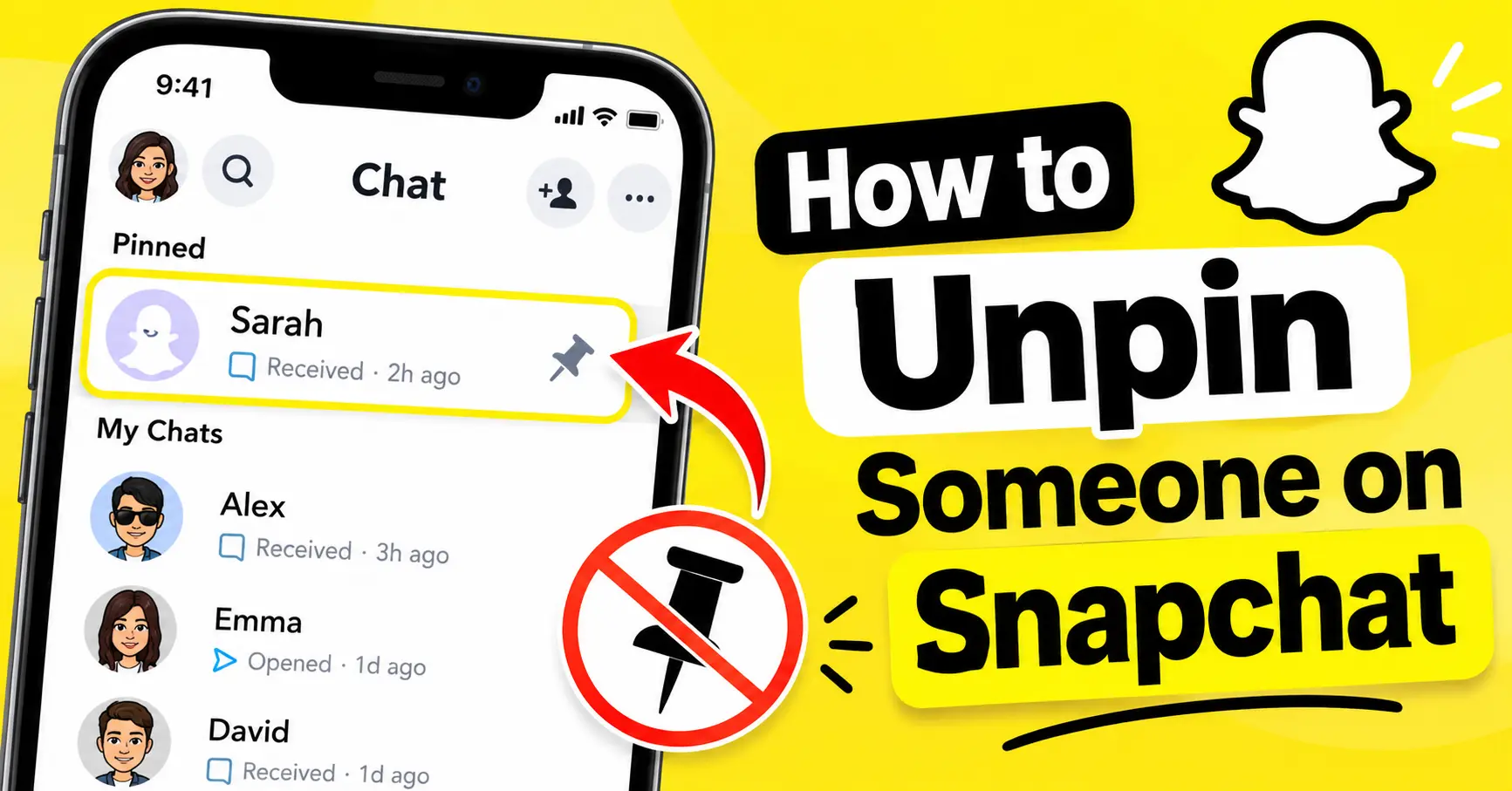
When you unpin someone, their conversation is removed from the pinned position and returns to your regular chat list.
For example, if you previously pinned a friend but no longer need quick access to their messages, you can unpin their conversation whenever you want.
Remember that unpinning only changes how the conversation appears on your screen. It does not delete messages, remove the person from your friends list, or change your friendship status.
How to Unpin Someone on Snapchat (Step-by-Step)
If you want to remove a pinned conversation, follow these steps:
Step 1: Open Snapchat
Open the Snapchat app on your iPhone and make sure you’re logged in to your account.
Step 2: Go to the Chat Screen
From the Camera screen, swipe right to open your Chat screen. You can also use the Chat tab if it appears in your app navigation.
Here, you’ll find your conversations with friends and groups.
Step 3: Find the Pinned Conversation
Look for the person whose conversation you want to unpin. Pinned conversations appear at the top of the Chat screen, making them easier to identify.
Step 4: Press and Hold the Conversation
Press and hold the friend’s name or conversation until the available options appear.
You don’t need to open the conversation to access its settings.
Step 5: Open Chat Settings
From the menu, tap Chat Settings. This will show additional options for managing that conversation.
Step 6: Tap Unpin Conversation
Select Unpin Conversation from the available options.
Snapchat will remove the pin, and the conversation will return to its normal position in your chat list.
That’s it! You have successfully unpinned someone on Snapchat.
How to Unpin Someone on Snapchat on iPhone
If you’re using an iPhone, Snapchat provides a direct option to manage pinned conversations.
Follow these instructions:
- Open Snapchat on your iPhone.
- Swipe right to access the Chat screen.
- Find the pinned friend’s conversation.
- Press and hold their chat.
- Select Chat Settings.
- Tap Unpin Conversation.
Once you complete these steps, the conversation will no longer stay fixed at the top of your Chat screen.
Important: According to Snapchat’s official support information, the regular pinned-conversation feature is currently available on iOS. Feature availability can change as Snapchat updates its app.
Can You Unpin Someone on Snapchat Without Deleting the Chat?
Yes! Unpinning and deleting a conversation are two different actions.
When you unpin someone, Snapchat simply removes the conversation from the pinned section. Your existing chat history remains available according to your normal chat settings.
You don’t have to delete saved messages or clear the conversation.
This is useful when you want to organize your Chat screen without losing important conversations.
Does Snapchat Notify Someone When You Unpin Them?
No. Snapchat does not send a notification when you unpin someone’s conversation.
The other person won’t receive an alert or message saying that you removed their chat from the pinned section.
Pinning and unpinning a regular conversation are personal chat-management features. These changes affect your Chat screen rather than the other person’s account.
You can manage your pinned conversations without worrying about sending an unpin notification.
What Is the Difference Between Unpinning a Chat and Unpinning a #1 BFF?
This is an important distinction because Snapchat has more than one pin-related feature.
Pinned Conversation
A regular pinned conversation keeps a friend’s chat at the top of your Chat screen.
It is designed to help you access important conversations quickly.
Snapchat+ #1 BFF Pin
Snapchat+ also offers a feature that allows subscribers to privately pin a friend as their #1 Best Friend.
This feature is different from a regular pinned conversation. It relates to your Best Friends experience rather than simply organizing your chat list.
The #1 BFF pin is private, meaning only you can see whom you have selected.
If you want to change your #1 Best Friend, use the friend-management options available in Chat or the Send To screen rather than looking for the regular Unpin Conversation setting.
Why Can’t I Find the Unpin Option on Snapchat?
Sometimes, users cannot find the unpin option even when they believe a conversation is pinned.
Here are some possible reasons:
1. You’re Selecting the Wrong Conversation
Make sure you’re pressing and holding the actual pinned conversation rather than opening another chat.
2. Your Snapchat App Needs an Update
An outdated app may display an older interface or have temporary issues. Check the App Store for available Snapchat updates.
3. You’re Using an Unsupported Device
Snapchat’s official support currently lists regular conversation pinning as an iOS feature. If you’re using Android, the option may not be available to your account.
4. Temporary App Problems
Sometimes, Snapchat may not respond correctly because of a temporary app issue.
Try closing and reopening the app. You can also check your internet connection and restart your device.
If the problem continues, visit Snapchat Support for additional help.
Does Unpinning Someone Remove Them From Your Best Friends List?
No. Unpinning a conversation does not automatically remove someone from your Best Friends list.
Snapchat’s Best Friends system is based on how you interact with other users. Friend Emojis and Best Friends rankings can change as your activity changes.
Similarly, removing a regular chat pin does not block someone, unfriend them, or affect your Snapchat Planets position.
These features work separately.
Frequently Asked Questions
Can I unpin someone on Snapchat without them knowing?
Yes. Snapchat does not notify someone when you unpin their regular conversation. The change is only visible on your Chat screen.
Does unpinning someone delete saved messages?
No. Unpinning only removes the pinned status. Saved messages and other conversation content are not automatically deleted.
Can I pin someone again after unpinning them?
Yes. If the feature is available on your account, you can pin the same conversation again whenever you want.
Does unpinning someone remove them as a friend?
No. You remain friends unless you separately remove or block that person.
Can I unpin a group conversation on Snapchat?
Yes. Where regular conversation pinning is supported, you can use the same Chat Settings process to unpin a group conversation.
Is unpinning someone on Snapchat free?
Yes. Regular conversation management does not require a Snapchat+ subscription. The separate #1 BFF pin is a Snapchat+ feature.
Final Thoughts
Unpinning someone on Snapchat is an easy way to keep your Chat screen organized. Simply find the pinned conversation, press and hold it, open Chat Settings, and select Unpin Conversation.
You don’t have to delete the chat or remove the person from your friends list. Your conversation remains available, and Snapchat does not notify the other person when you unpin them.
Just remember that regular pinned conversations and Snapchat+ #1 BFF pins are separate features. Understanding the difference will help you manage your Snapchat account without confusion.