How to Turn Off Ads on Snapchat (2026 Guide)
Snapchat is a popular social media app where users share photos, videos, Stories, and messages with friends. However, one thing many users find annoying is the number of advertisements that appear while using the app.
You may see ads between Stories, inside Spotlight, on the Discover page, or in other parts of Snapchat. These advertisements can interrupt your experience, especially when you are trying to watch content or browse posts.
If you’re wondering how to turn off ads on Snapchat, there are a few settings you can change to reduce personalized advertising. Snapchat also offers a paid subscription with additional features, although it does not necessarily remove every advertisement.
In this guide, you’ll learn how Snapchat ads work, how to manage ad preferences, and what options are available in 2026.
Can You Turn Off Ads on Snapchat?
Snapchat does not provide a single setting that completely disables all advertisements for free users.
However, you can manage your advertising preferences and limit how Snapchat uses your activity to show personalized ads.
For example, you can turn off certain activity-based advertising options, limit information shared with advertising partners, and manage sensitive ad categories where available.
It’s important to understand the difference between turning off personalized ads and removing ads completely.
- Personalized ads: Advertisements selected based on your interests and activity.
- Non-personalized ads: Advertisements that may still appear but are not tailored in the same way.
- All ads: Completely removing advertisements from the app.
Changing your ad preferences mainly affects personalization. It does not guarantee an advertisement-free Snapchat experience.
How to Turn Off Personalized Ads on Snapchat
If you want Snapchat to stop using certain information to personalize advertisements, follow these steps.
Step 1: Open Snapchat
Open the Snapchat app on your Android or iPhone.
Make sure you’re logged into the account where you want to change advertising preferences.
Step 2: Open Your Profile
Tap your Bitmoji or profile picture in the top-left corner of the screen.
This will open your Snapchat profile.
Step 3: Go to Settings
Tap the gear icon in the top-right corner to open Settings.
Here, you’ll find different options related to your account, privacy, notifications, and advertising.
Step 4: Find Ad Preferences
Scroll down until you find the Ads section.
Tap Ad Preferences to see the available advertising controls.
The exact menu names and available options may vary depending on your app version and region.
Step 5: Manage Advertising Options
Look for options related to activity-based advertising and information from advertising partners.
Turn off the options you do not want Snapchat to use for personalized advertisements.
Once you’ve updated your preferences, Snapchat should use those choices when determining which personalized ads to show you.
Remember that you may still see regular advertisements.
How to Turn Off Audience-Based Ads
Audience-Based Ads use information from advertisers and their partners to decide which advertisements may be relevant to you.
For example, if a business has a customer list, it may use that information to reach people on Snapchat.
You can disable this option by following these steps:
- Open Snapchat and tap your profile picture.
- Tap the Settings gear icon.
- Open My Account.
- Find Ad Preferences on iPhone or go to Ads on Android.
- Open Ad Preferences.
- Turn off Audience-Based.
After disabling this option, Snapchat should stop using partner-provided audience lists for this type of ad targeting.
How to Turn Off Third-Party Ad Networks
Snapchat may work with third-party advertising networks to deliver and measure advertisements.
If you don’t want these networks to use the information Snapchat shares with them for advertising services, you can disable this option.
Follow these steps:
- Open your Snapchat profile.
- Tap the Settings icon.
- Go to My Account.
- On Android, open Ads. On iPhone, find Ad Preferences.
- Select Ad Preferences.
- Turn off Third-Party Ad Networks.
This setting gives you more control over third-party advertising. However, it does not remove advertisements from Snapchat.
How to See Fewer Ads From Certain Categories
Sometimes, you may see advertisements related to topics that you don’t want to see.
Snapchat provides Ad Topics and Lifestyle & Interests settings that allow you to manage certain advertising categories.
Here’s how to find them:
- Open Snapchat Settings.
- On Android, go to My Account and select Ads.
- Tap Lifestyle & Interests.
- Review the available categories and switch off the ones you don’t want.
- Look for Ad Topics to manage sensitive advertising categories.
On iPhone, these options may appear under App & Privacy, followed by My App and Lifestyle & Interests.
Depending on your account and location, you may be able to limit advertisements related to categories such as alcohol, gambling, and politics.
These settings help personalize your advertising experience, but they don’t block every ad.
How to Turn Off Ads on Snapchat Using Snapchat+ Platinum
If you want a more uninterrupted Snapchat experience, Snapchat offers a paid subscription called Snapchat+ Platinum.
Unlike regular Snapchat+, the Platinum plan includes an advertising benefit.
According to Snapchat’s current support information, the Platinum Monthly Plan removes Story and Lens ads. However, sponsored places and sponsored responses from My AI may still appear.
Here’s how to subscribe:
- Open Snapchat.
- Tap your profile picture.
- Find the Snapchat+ banner at the top.
- Open the available subscription plans.
- Select Platinum Monthly Plan.
- Review the price and subscription terms.
- Complete your purchase through the App Store or Google Play.
2026 update
Snapchat’s Platinum subscription is not available in every region. If you cannot find this option, it may not have rolled out to your account yet.
Also, regular Snapchat+ and Lens+ should not be confused with Platinum. The advertising benefits are specifically associated with the Platinum plan. Snapchat Support+1
How to Turn Off Snapchat Ads on iPhone
iPhone users can also manage advertising tracking through Apple’s privacy settings.
Follow these steps:
- Open your iPhone Settings.
- Scroll down and tap Privacy & Security.
- Select Tracking.
- Find Snapchat in the app list.
- Turn off its tracking permission if available.
This limits Snapchat’s ability to track your activity across other companies’ apps and websites for targeted advertising purposes.
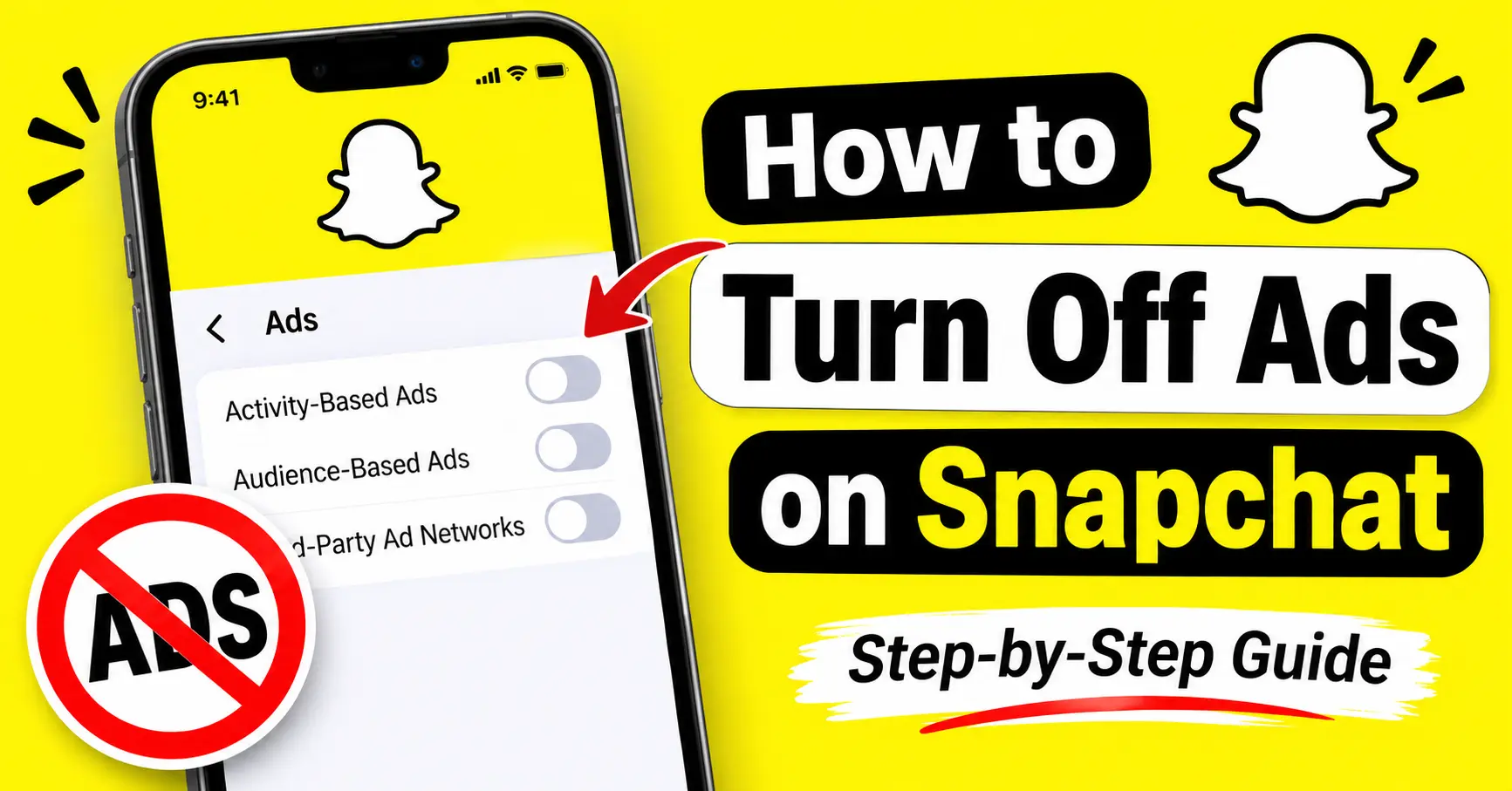
You can also manage Activity-Based, Audience-Based, and Third-Party Ad Networks options directly inside Snapchat.
Remember that Apple’s tracking permission and Snapchat’s advertising preferences control different things.
How to Reduce Personalized Ads on Android
Android users can manage advertising preferences through Snapchat and their phone settings.
To adjust Snapchat’s own settings:
- Open Snapchat.
- Tap your profile picture.
- Open Settings.
- Select My Account.
- Tap Ads.
- Open Ad Preferences.
- Disable the advertising options you don’t want.
You can also check your Android device’s privacy or advertising settings for options to limit ad personalization.
The exact names and locations of these settings depend on your Android version and device manufacturer.
How to Report Unwanted Ads on Snapchat
Sometimes, you may come across an advertisement that looks misleading, inappropriate, or irrelevant.
Snapchat allows users to report advertisements directly.
Here’s how:
- Find the advertisement you want to report.
- Press and hold the ad or tap the three-dot menu.
- Select Report Ad.
- Choose the reason for your report.
- Follow the instructions to submit it.
Reporting an advertisement does not automatically block every similar ad, but it helps Snapchat review advertising content. Snapchat Support
Why Am I Still Seeing Ads After Turning Them Off?
If you’ve disabled all the available advertising preferences but still see advertisements, don’t worry. This is expected.
There are several reasons why Snapchat may continue showing ads:
- Regular advertising: Turning off personalized ads does not remove all advertisements.
- Snapchat activity: The platform may still use your activity within Snapchat to determine which ads to display.
- Sponsored content: Sponsored places and certain promotional content may still appear.
- Regional differences: Advertising controls and subscription options can vary depending on your country.
- App updates: Changes to Snapchat’s interface may move advertising settings to different sections.
If your settings are correct, you may simply be seeing non-personalized advertisements.
Frequently Asked Questions
Can I completely remove ads from Snapchat for free?
No. Snapchat does not currently offer a free setting that completely removes all advertisements. You can disable certain personalized advertising options, but regular ads may still appear.
Does Snapchat+ remove all advertisements?
No. Regular Snapchat+ does not include the same advertising benefits as Snapchat+ Platinum. Platinum removes Story and Lens ads, although some sponsored content may remain.
Can I turn off ads on Snapchat without deleting my account?
Yes. You can manage your advertising preferences without deleting your Snapchat account. These settings are available through the app’s Settings menu.
Why am I seeing ads from websites I recently visited?
Snapchat may use information from its advertising partners to show Activity-Based Ads. You can disable this option through Ad Preferences to limit this type of advertising.
Does turning off personalized ads affect Snapchat features?
No. Disabling advertising preferences does not normally affect your ability to send Snaps, chat with friends, watch Stories, or use other standard Snapchat features.
Final Thoughts
If Snapchat advertisements are becoming annoying, changing your Ad Preferences is a good place to start. You can disable Activity-Based Ads, Audience-Based Ads, and Third-Party Ad Networks to limit certain types of personalized advertising.
However, remember that these settings do not completely remove ads from the app. If you want fewer interruptions while watching Stories and Lenses, Snapchat+ Platinum is another option where available.
Check your advertising settings occasionally because Snapchat can update its interface and subscription options. This will help you maintain better control over your advertising experience in 2026.