How to Turn Off Spotlight Notifications on Snapchat?
Snapchat Spotlight is a popular place to discover short videos, trending content, and posts from creators. While it can be fun to keep up with new content, frequent Spotlight alerts can become distracting.
If you are searching for how to turn off Spotlight notifications on Snapchat, the good news is that Snapchat gives you control over several notification types. The exact options can vary slightly depending on your app version and device.
Here’s exactly where to go to manage them.
What Are Spotlight Notifications on Snapchat?
Spotlight notifications are alerts related to activity and content connected with Snapchat’s Spotlight feature.
Depending on your account and notification settings, you may receive alerts about activity such as comments or other Snapchat updates.
If you are also learning how to delete Snapchat Story posts, it’s helpful to understand the difference between Stories and Spotlight. Snapchat Stories are temporary posts that usually disappear after 24 hours, while Spotlight is designed for discovering community-created short videos. Snapchat continues to update how these features work, so the available options may change with new app updates.
Not every Spotlight-related alert has a separate button labeled “Spotlight Notifications.” Instead, some notifications are controlled through broader notification categories.
How to Turn Off Spotlight Notifications on Snapchat
The simplest approach is to check Snapchat’s notification settings and disable the notification category you no longer want.
Step 1: Open Snapchat
Open the Snapchat app on your iPhone or Android phone.
Make sure you are signed into the account where you are receiving the unwanted alerts.
Step 2: Go to Your Profile
Tap your profile icon in the top-left corner of the Camera screen.
This opens your Snapchat profile.
Step 3: Open Settings
Tap the gear icon ⚙️ in the top-right corner.
You will now see your Snapchat settings.
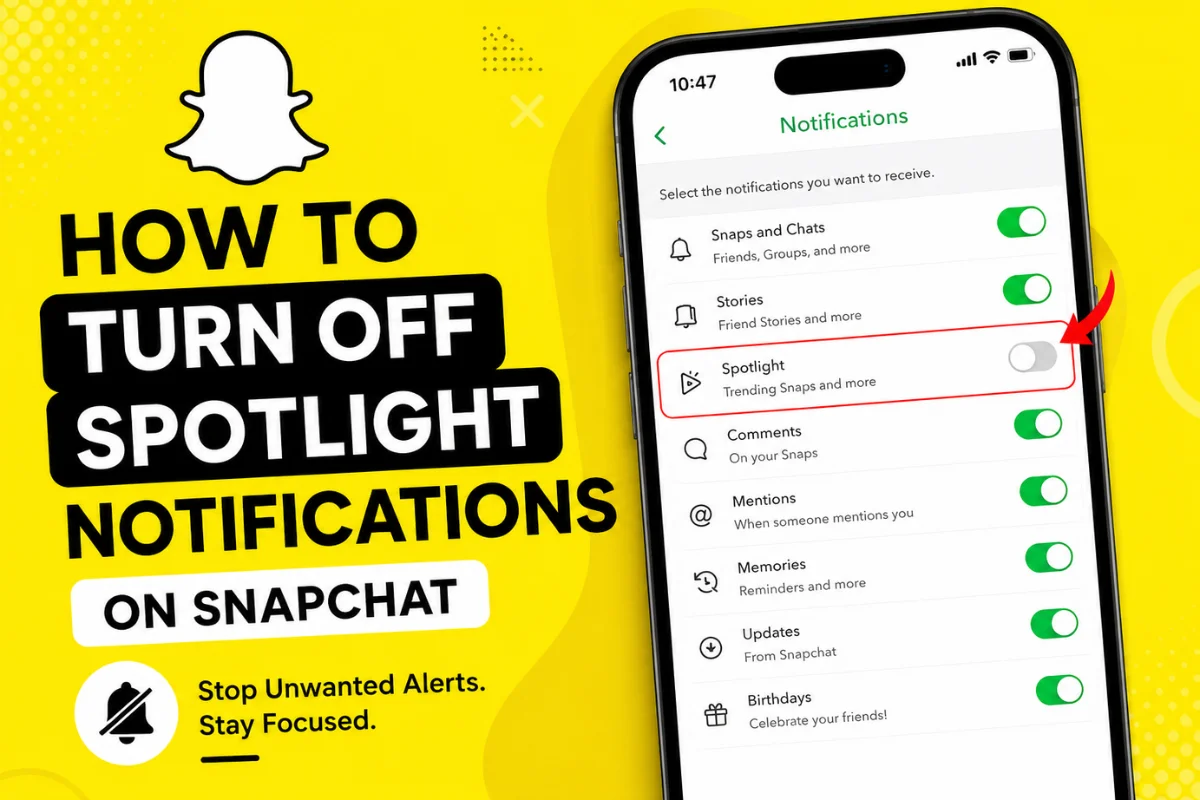
Step 4: Tap Notifications
Scroll through the settings and tap Notifications.
Snapchat places several notification controls in this section. The available options can differ slightly depending on your device and the current version of the app.
Step 5: Turn Off the Relevant Notification
Look through the available notification categories and switch off the type of alert you no longer want.
If your Spotlight alerts are related to comments, Snapchat’s current support instructions specifically say to go to Settings → Notifications → Comments and toggle comments off.
This is particularly useful if you are receiving repeated notifications about activity on your Spotlight content.
How to Turn Off Spotlight Comment Notifications
If you post videos to Spotlight, comments may be one reason you are getting repeated alerts.
Snapchat provides a direct setting for these notifications.
Go to:
Profile → Settings ⚙️ → Notifications → Comments → Off
According to Snapchat’s current support documentation, disabling Comments stops notifications for Spotlight comments.
This does not mean you have to stop using Spotlight. You can continue watching and posting content while controlling the notifications you receive.
How to Turn Off All Snapchat Notifications
If you do not want to receive any Snapchat alerts, you can disable Snapchat notifications more broadly.
On Snapchat, go to:
Profile → Settings → Notifications
From there, turn off the notification types you do not want.
On iPhone, Snapchat says you can use the notification toggles for individual notification types.
On Android, Snapchat similarly provides notification controls inside the app, although some devices may also require notification access to be managed through Android’s system settings.
Keep in mind that turning off all Snapchat notifications will affect other alerts too, not just Spotlight.
What If You Cannot Find a Spotlight Notification Setting?
This is a common point of confusion.
Snapchat does not necessarily display one universal setting called “Spotlight Notifications.” Notification controls can be separated into different categories.
For example, Snapchat currently provides a specific setting for Comments, while other Snapchat notifications have their own controls.
If you cannot find a Spotlight option, check the individual notification categories instead of looking for one button with the word “Spotlight.”
Also make sure Snapchat is updated. App interfaces can change as Snapchat introduces new features and reorganizes settings.
Can You Stop Spotlight From Showing Recommended Content?
Turning off notifications is different from changing what appears in your Spotlight feed.
If your main problem is seeing too many recommended Spotlight videos, switching off notifications will not remove Spotlight itself.
Snapchat also provides personalization controls for public content in certain regions. Its current support information says users in the European Economic Area, the UK, and Switzerland can disable personalized public-content recommendations or reset their personalized content feed.
So there are two separate solutions:
- Too many alerts: Change your notification settings.
- Too many unwanted recommendations: Review Spotlight personalization options where available.
How to Stop Spotlight Notifications From Your Own Posts
If you regularly upload Spotlight videos, you may receive notifications connected with activity on those posts.
For example, comments can generate notifications. You can turn those alerts off through the Comments notification setting.
However, this is different from disabling comments on your Spotlight videos.
If you want to control what comments appear publicly, Snapchat currently offers a Manual Approval option under Profile → Settings → Privacy Controls → Comment Settings. Only comments you approve will appear on your videos when this option is enabled.
That means notification control and comment control are two different settings.
What Has Changed With Snapchat Spotlight Recently?
Snapchat continues to develop Spotlight as a major public-content and creator feature.
In 2026, Snapchat’s monetization documentation shows continued emphasis on Spotlight viewing activity and creator performance. Snapchat says that, beginning May 7, 2026, creators need at least 100 hours of total Spotlight view time over the previous 28 days to qualify for maximum Creator Rewards.
This ongoing focus on Spotlight means users may continue to see changes in how the feature, creator tools, recommendations, and related notifications work.
Because Snapchat regularly updates its app, a setting shown in an older tutorial may not appear in exactly the same place today.
Why You Should Manage Snapchat Notifications
Too many notifications can make your phone feel unnecessarily busy.
You may only want alerts for direct messages, calls, or important activity from friends. In that case, keeping every Snapchat notification enabled can create unnecessary interruptions.
Managing notifications lets you keep the Snapchat features you enjoy without having to silence the entire app.
The best approach is usually to turn off only the notification categories that are causing problems.
Frequently Asked Questions
Can I turn off Spotlight notifications without deleting Snapchat?
Yes. You do not need to delete Snapchat or stop using Spotlight. You can manage notification categories from Snapchat’s notification settings.
Why am I still getting Snapchat notifications after turning some off?
You may have disabled one notification category while another category remains active. Check Snapchat’s Notifications settings and your phone’s system notification settings.
Can I turn off Spotlight comments notifications?
Yes. Snapchat currently provides a Comments notification control under Settings → Notifications.
Will turning off notifications remove Spotlight?
No. Turning off notifications only changes the alerts you receive. Spotlight remains available inside Snapchat.
Do iPhone and Android have the same notification settings?
They are similar, but the available controls and system-level settings can differ. Snapchat provides separate instructions for iOS and Android.
Final Thoughts
If Spotlight notifications are becoming annoying, you do not need to stop using Snapchat altogether. Start by opening Profile → Settings → Notifications and review the available notification categories.
If the alerts are specifically related to Spotlight comments, turn off Comments. If you want fewer Snapchat alerts overall, you can disable additional notification types or manage Snapchat from your phone’s notification settings.
Since Snapchat’s interface can change with app updates, always check the current notification menu on your device rather than relying on an older screenshot or tutorial.