How to Put an Instagram Post on Snapchat Story?
Have you ever seen an Instagram post that you wanted to share with your Snapchat friends? Maybe it’s a funny meme, an important announcement, or your own Instagram photo that deserves more attention. The good news is that you can easily share Instagram content on your Snapchat Story.
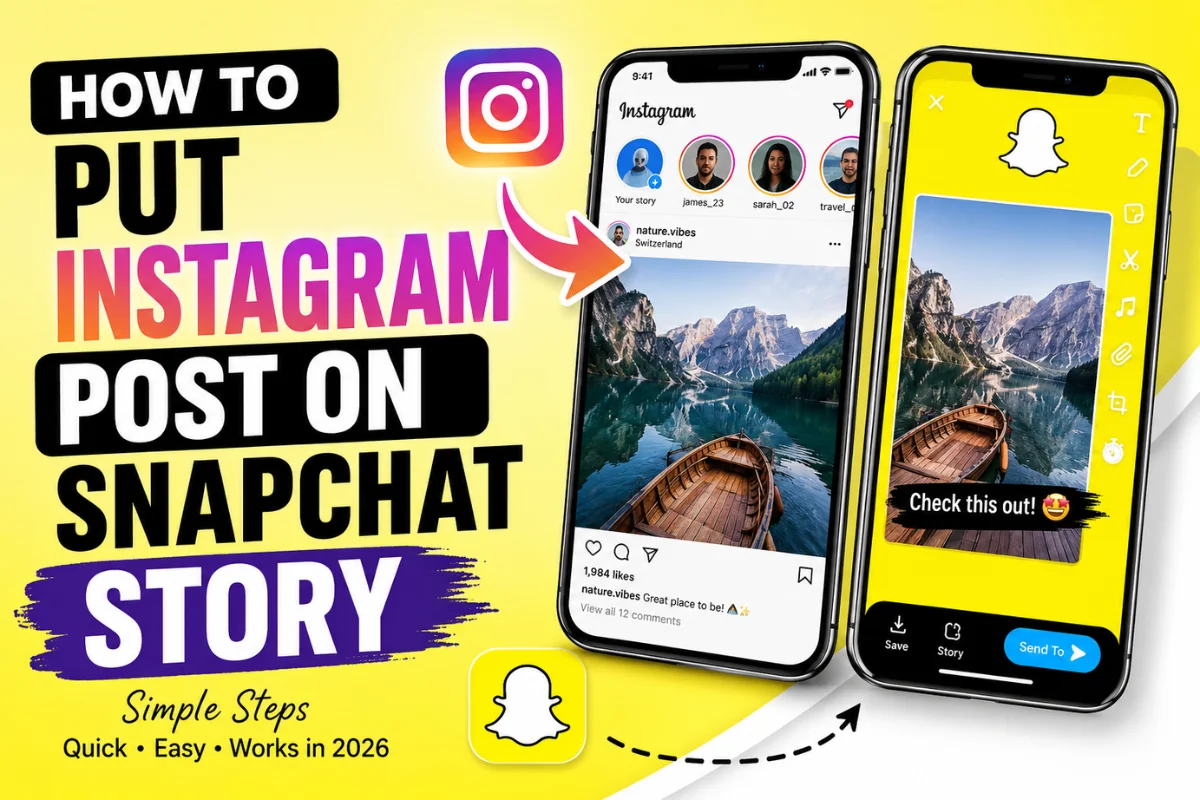
Although Instagram and Snapchat are separate social media platforms, there are several simple ways to post Instagram content on Snapchat. Depending on what you’re sharing, you can use the built-in Share option, take a screenshot, save your own post, or share a link.
In this guide, you’ll learn exactly how to put an Instagram post on Snapchat Story, the best methods for different situations, common problems, and useful tips to make your Stories look better.
Can You Share an Instagram Post to Snapchat Story?
Yes, you can.
However, Instagram doesn’t offer a direct “Share to Snapchat Story” button for every post. Instead, you’ll need to use one of several available methods depending on whether the content belongs to you or someone else.
The easiest options include:
- Sharing the Instagram post link
- Saving your own Instagram post
- Taking a screenshot
- Recording your screen for videos
- Using Snapchat Memories after downloading your content
The method you choose depends on the type of Instagram content you want to share.
Method 1: Share Your Own Instagram Post to Snapchat Story
If the Instagram post belongs to you, this is the easiest option.
Step 1: Open Instagram
Launch the Instagram app and go to your profile.
Step 2: Select the Post
Find the photo or video you want to share.
Step 3: Save the Post
Tap the three dots in the top-right corner.
Choose:
Save to Device or Download
If it’s a Reel, Instagram also lets many users download it directly without a watermark, depending on account settings and region.
Step 4: Open Snapchat
Launch Snapchat.
Step 5: Upload From Camera Roll
Tap the Memories icon.
Choose Camera Roll.
Select the downloaded Instagram post.
Step 6: Add It to Your Story
Customize it with:
- Stickers
- Text
- Emojis
- Music
- Filters
- GIFs
Tap My Story to publish.
Method 2: Share Someone Else’s Instagram Post on Snapchat
If you don’t own the Instagram post, downloading it usually isn’t available.
Instead, use one of these methods.
Option A: Share the Link
Open the Instagram post.
Tap the three dots.
Select Copy Link.
Open Snapchat.
Take a photo or use a plain background.
Tap the paperclip icon.
Paste the Instagram link.
Now your Snapchat friends can open the original Instagram post.
Option B: Take a Screenshot
For photos:
- Open the Instagram image.
- Take a screenshot.
- Crop unnecessary areas.
- Upload it from Camera Roll to Snapchat.
This works well for static images.
Method 3: Share Instagram Reels on Snapchat Story
Instagram Reels are one of the most shared content types today.
There are two common ways to post them on Snapchat.
Download Your Own Reel
If it’s your Reel:
- Open the Reel
- Tap Share
- Download it
- Upload it to Snapchat
This gives the best quality.
Record Your Screen
If downloading isn’t available:
- Start your phone’s screen recorder.
- Play the Reel.
- Stop recording.
- Trim the video.
- Upload it to Snapchat Story.
This method works on both Android and iPhone.
Method 4: Share Instagram Story on Snapchat
If you want to repost your own Instagram Story:
Open Instagram.
Open your Story.
Tap More.
Choose Save Story.
Open Snapchat.
Upload the saved Story from your Camera Roll.
Add filters or text if desired.
Post it.
How to Share Instagram Carousel Posts
Carousel posts contain multiple photos.
To share them:
- Open the carousel.
- Screenshot each image.
- Or save the carousel if it’s your own.
- Choose your favorite slide.
- Upload it to Snapchat.
You can also combine several screenshots into one Snapchat Story sequence.
How to Share Instagram Videos to Snapchat
Videos work similarly.
If downloading is available:
- Save the video.
- Upload directly.
If not:
- Record your screen.
- Trim unnecessary parts.
- Upload to Snapchat.
Keep the video short since viewers often skip lengthy Stories.
Add Creative Elements Before Posting
Simply uploading an Instagram post works, but adding Snapchat features makes it more engaging.
Consider adding:
Text
Explain why you’re sharing it.
Example:
“Had to share this!”
or
“This made my day 😂”
Stickers
Snapchat offers:
- Polls
- Questions
- Bitmoji
- Weather
- Time
- Location
These make Stories more interactive.
Filters
Snapchat lenses and filters help your Story stand out.
Try:
- Color filters
- Vintage filters
- Beauty filters
- Seasonal lenses
Music
Music creates a better viewing experience.
Choose a song that matches the mood of the Instagram post.
Does Instagram Notify Someone?
No.
Instagram does not notify someone if you:
- Share their post link
- Screenshot their post
- Upload it to Snapchat
However, always respect copyright and creator permissions, especially for business content or artwork.
Can You Share Private Instagram Posts?
No.
Private account content should not be shared without permission.
Even if you can view it, reposting private content may violate privacy expectations.
Always ask the original creator before sharing.
Why Can’t I Download an Instagram Post?
Several reasons may prevent downloading.
These include:
Creator Disabled Downloads
Some creators turn off downloading for Reels.
Older Instagram Version
Update Instagram from your app store.
New features often require the latest version.
Regional Restrictions
Some features roll out gradually and may not be available in every country immediately.
Copyright Protection
Instagram limits downloading for certain protected content.
Why Does the Instagram Post Look Blurry on Snapchat?
Blurry uploads usually happen because of compression.
Try these fixes:
- Download the original file.
- Avoid multiple screenshots.
- Use high-resolution images.
- Upload over Wi-Fi.
- Keep the original aspect ratio.
This usually improves image quality.
Tips for Better Snapchat Stories
If you want more engagement, follow these simple tips.
Keep It Clean
Don’t overcrowd your Story with too much text.
Add Context
Tell viewers why you’re sharing the post.
Use Vertical Images
Vertical photos fill the Snapchat screen better.
Keep Videos Short
Aim for 10–20 seconds whenever possible.
Post at Active Hours
Sharing when your friends are active often leads to more views.
Is Sharing Instagram Posts on Snapchat Safe?
Yes.
Using the official apps is completely safe.
Avoid third-party downloading apps that ask for your Instagram login.
Many unofficial apps can compromise your privacy or violate platform policies.
Whenever possible, use Instagram’s built-in download features or your device’s screenshot and screen recording tools.
Frequently Asked Questions
Can I directly share an Instagram post to Snapchat Story?
Not always. Most users need to save the content, take a screenshot, record the screen, or share the post link before uploading it to Snapchat.
Can I share Instagram Reels on Snapchat?
Yes. You can download your own Reel or use screen recording if downloading isn’t available.
Does Snapchat keep the Instagram link clickable?
Yes. If you attach the Instagram URL using Snapchat’s link feature, viewers can tap it to visit the original post.
Will Instagram notify someone?
No. Instagram doesn’t notify users when their public posts are shared on Snapchat.
Can I share posts from private accounts?
You should not share private Instagram content without the owner’s permission.
Final Thoughts
Learning how to put Instagram post on Snapchat Story is simple once you know the available methods. Whether you’re sharing your own content, highlighting a favorite Reel, posting a funny meme, or directing friends to an Instagram page, Snapchat gives you several flexible ways to do it.
For the best results, use official app features whenever possible, keep your Story visually appealing, and respect the privacy and rights of other creators. With a few taps, you can easily connect your Instagram content with your Snapchat audience and keep your friends engaged across both platforms.