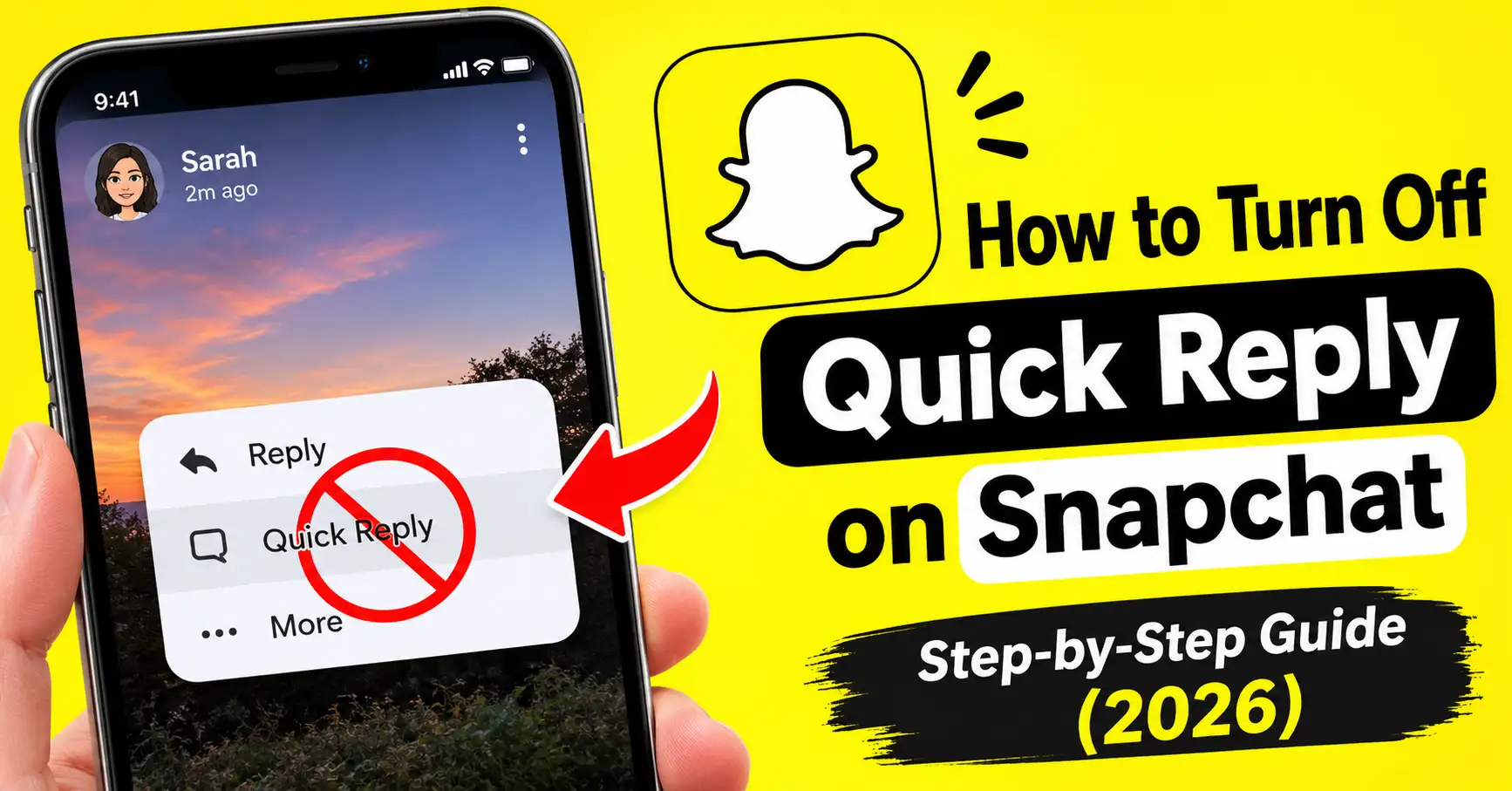
How to Turn Off Quick Reply on Snapchat (2026 Guide)
Snapchat regularly introduces new features to make chatting and sharing Snaps easier. However, not every update is popular with users. One feature that has recently caught people’s attention is Quick Reply. It allows users to respond to Snaps more quickly, but some people find it annoying because it takes up screen space or appears when they simply want to view a Snap.
If you’re wondering how to turn off Quick Reply on Snapchat, you’re not alone. Many users are looking for a way to remove this feature and enjoy a cleaner viewing experience. You can also explore our Snap Story Viewer guide to learn more about viewing Snapchat Stories.
In this guide, you’ll learn what Snapchat Quick Reply does, whether you can disable it, and what alternatives you can try to avoid unwanted reply suggestions.
What Is Quick Reply on Snapchat?
Quick Reply is a feature that makes it easier to respond to Snaps without going through the usual steps of opening a separate conversation.
Depending on your Snapchat app version and interface, reply-related options may appear while viewing or after opening a friend’s Snap. This gives you a faster way to start a conversation.
Although the feature can be useful for people who frequently reply to their friends, not everyone wants to use it. Some users prefer watching Snaps without additional reply options appearing on the screen.
Recent Snapchat interface changes have also made some users question whether Quick Reply can be disabled through the app’s settings.
Can You Turn Off Quick Reply on Snapchat?
Currently, Snapchat does not provide a clearly documented, dedicated setting that allows everyone to turn off the newer Quick Reply interface.
This means you may not find a Quick Reply switch under your Chat, Notifications, or Privacy settings.
The feature may be connected to Snapchat’s app interface rather than a traditional account setting. Its availability and appearance can also vary depending on your app version and account.
However, there are a few things you can try to manage the experience.
How to Turn Off Quick Reply on Snapchat: Things to Try
If Quick Reply keeps appearing when you open Snaps, try the following methods.
1. Check Your Snapchat Settings
Start by checking whether your Snapchat version includes any relevant interface or reply controls.
Follow these steps:
- Open Snapchat on your phone.
- Tap your Bitmoji or profile icon in the top-left corner.
- Tap the Settings gear icon.
- Look through the available Chat and notification settings.
- Check whether your version includes a Quick Reply or related feature toggle.
If you find a dedicated Quick Reply option, turn it off.
Keep in mind that Snapchat does not currently document a universal setting for disabling the newer Quick Reply interface. Therefore, you may not see this option on your account.
2. Use the Unread Filter in Chat
Some users have reported that filtering conversations by unread messages helps avoid the newer Quick Reply interface.
You can try this workaround:
- Open Snapchat.
- Go to the Chat screen.
- Look for the available chat filters.
- Select the Unread filter.
- Open conversations containing unread messages.
This workaround has been mentioned by users experiencing the newer reply interface. However, it is not an official Snapchat solution and may not work for every account.
3. Update Snapchat to the Latest Version
Sometimes, interface problems happen because of bugs or incomplete app updates.
Updating Snapchat can help if the Quick Reply feature is behaving unexpectedly.
On Android:
- Open the Google Play Store.
- Search for Snapchat.
- Open the app page.
- Tap Update if an update is available.
On iPhone:
- Open the App Store.
- Tap your profile picture.
- Find Snapchat in the available updates.
- Tap Update.
After updating, open Snapchat again and check whether the Quick Reply interface has changed.
Remember that updating does not guarantee the feature will disappear. Snapchat may also introduce interface changes through newer versions.
4. Clear Snapchat Cache
If Quick Reply appears incorrectly or the app behaves unusually, clearing its cache may help resolve temporary performance issues.
Here’s how:
- Open Snapchat.
- Tap your profile icon.
- Open Settings.
- Scroll down to Account Actions.
- Tap Clear Cache.
- Confirm your choice.
Clearing the cache does not disable Quick Reply. It simply removes temporary files that may contribute to app performance problems.
Your saved Memories and regular account information should remain available.
How to Turn Off Quick Replies on Snapchat Notifications
There is another type of quick reply that users sometimes confuse with Snapchat’s newer viewing interface.
On Android, some notification systems allow you to respond directly from a notification without opening the full Snapchat app.
If you want to stop these notification-based replies, you can manage Snapchat notifications through your phone settings.
On Android:
- Open your phone’s Settings.
- Go to Apps.
- Select Snapchat.
- Tap Notifications.
- Review the available notification categories.
- Adjust the relevant notification options if your device provides them.
On iPhone:
- Open Settings.
- Tap Notifications.
- Select Snapchat.
- Adjust notification delivery options.
These steps manage notifications, not the Quick Reply interface that appears while viewing Snaps. Turning off notifications may also prevent you from receiving other Snapchat alerts.
How to Turn Off Replies on Your Snapchat Public Story
If you actually want to stop people from replying to your public Stories, Snapchat provides a separate setting for this.
You can disable public Story replies through your Public Profile settings.
Follow these steps:
- Open Snapchat.
- Tap your Bitmoji or profile icon.
- Open your Public Profile.
- Tap the three-dot menu.
- Open Public Profile Settings.
- Find Show Public Story Replies.
- Turn the option off.
Once disabled, people will no longer be able to send replies to your Public Stories through that feature.
This setting is different from Quick Reply. It controls interactions with your public content rather than the reply interface used when viewing Snaps.
Why Does Snapchat Keep Showing Quick Reply?
There are several possible reasons why Quick Reply appears on your account.
New app interface: Snapchat regularly tests and updates its interface. Some users may receive new features before others.
Faster communication: Quick Reply is designed to make conversations easier by reducing the steps needed to respond.
Account-level testing: Snapchat sometimes introduces interface changes to selected groups of users. This means two people using the same app version may not always see identical features.
Automatic updates: If your phone automatically updates Snapchat, you may notice changes without manually installing a new version.
In October 2026, Snapchat users also discussed the newer reply interface on community forums, with several expressing frustration about not having a clear option to disable it. This suggests that the experience may not be limited to one device or account.
Does Turning Off Quick Reply Affect Your Snapchat Account?
No. Managing your notification settings, clearing the cache, or using available chat filters does not normally affect your Snapchat account status.
You can still:
- Send and receive Snaps.
- Chat with your friends.
- View Stories.
- Reply to individual messages.
- Manage your privacy settings.
However, disabling notifications may prevent you from receiving certain alerts. Similarly, turning off public Story replies affects how other people interact with your public content.
You should avoid using unofficial Snapchat apps or third-party tools that promise to remove Quick Reply. These tools may put your account security and personal information at risk.
How to Report the Quick Reply Feature to Snapchat
If you find Quick Reply annoying and cannot find a way to disable it, you can send feedback directly to Snapchat.
Here’s how:
- Open Snapchat.
- Tap your profile icon.
- Open Settings.
- Scroll down to Support.
- Select I Spotted a Bug or an available feedback option.
- Explain that you want an option to disable Quick Reply.
- Submit your feedback.
You can also contact Snapchat through its official support website.
The more clearly you explain the problem, the easier it is for the support team to understand your concern.
Final Thoughts
Quick Reply can make responding to Snaps faster, but some users prefer a cleaner screen without additional reply options. Unfortunately, Snapchat does not currently offer a universally available, officially documented switch to disable its newer Quick Reply interface.
You can check your app settings, try the unread chat filter, update Snapchat, or report the feature to the support team. If you’re trying to stop replies to your Public Stories, use the separate Show Public Story Replies setting.
Hopefully, Snapchat will introduce a dedicated option in a future update so users can choose whether they want Quick Reply on or off.