How to Add a Link to a Snapchat Story?
Have you ever seen a Snapchat Story with a button that opens a website, YouTube video, product page, or blog? That’s the Snapchat Story link feature, and it’s one of the easiest ways to drive traffic directly from Snapchat.
Whether you’re a creator, business owner, marketer, or just sharing something useful with friends, adding a link to your Snapchat Story helps people take action without searching for the website manually.
This guide explains how to add a link to a Snapchat Story, who can use the feature, troubleshooting tips, and best practices for getting more clicks.
Why Add a Link to a Snapchat Story?
Adding a link makes your Story more interactive. Instead of asking viewers to type a website address, they can simply tap and open it instantly.
People commonly add links to:
- Personal websites
- Blog posts
- Online stores
- YouTube videos
- Instagram or TikTok profiles
- Event registration pages
- Affiliate products
- News articles
- Portfolio pages
It saves time and increases the chances that viewers will actually visit your content.
Can Anyone Add a Link to a Snapchat Story?
Yes.
One of Snapchat’s biggest improvements over the past few years is that the link sticker is available to most users. You no longer need to be a verified creator or business account just to share a website.
As long as you’re using an updated version of Snapchat, you can usually attach links to your Stories.
However, Snapchat may still restrict certain unsafe or prohibited websites.
How to Add a Link to a Snapchat Story
Follow these simple steps.
Step 1: Open Snapchat
Launch the Snapchat app on your Android or iPhone.
Make sure you’re logged into your account.
Step 2: Capture or Upload a Photo or Video
Take a new Snap using the camera.
Or:
- Swipe up from Memories
- Select an existing photo or video
- Edit it if needed
Choose content that matches the website you’re sharing.
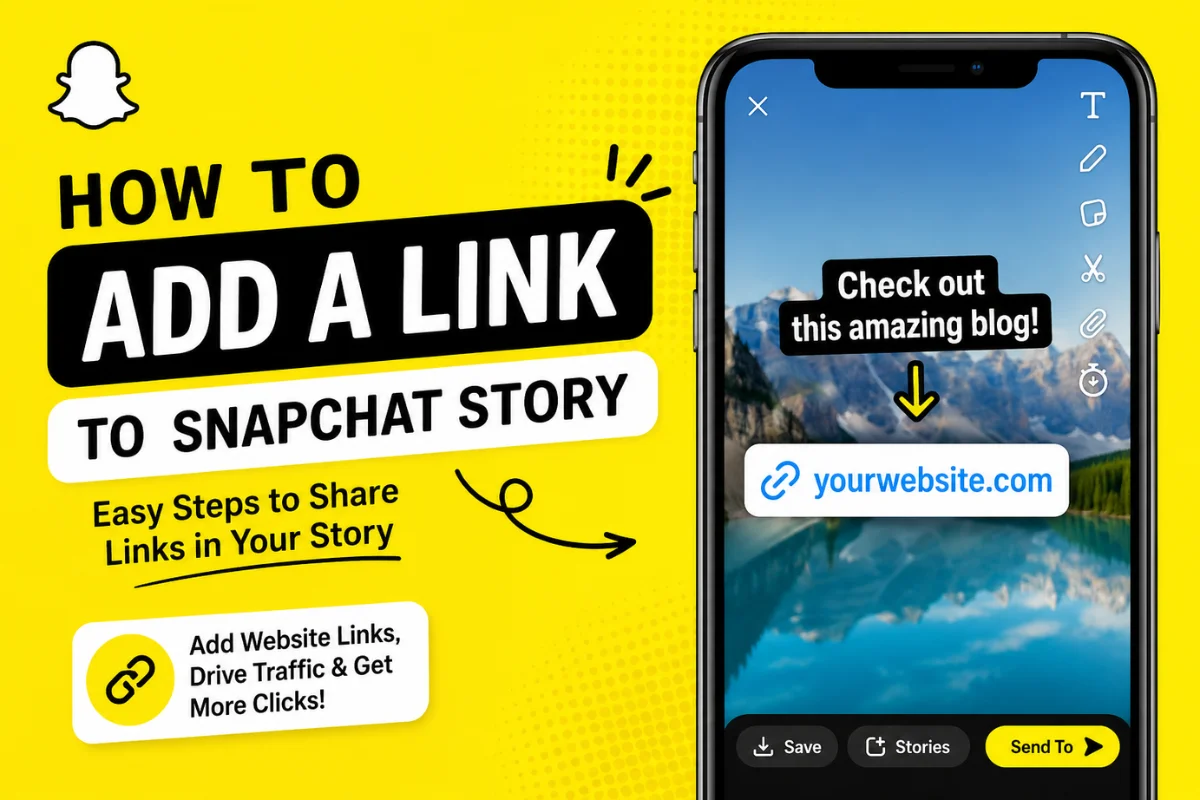
Step 3: Tap the Attachment (Link) Icon
After creating your Snap, look at the editing tools on the right side.
Tap the paperclip (attachment) icon.
This is Snapchat’s link tool.
Step 4: Enter Your Website URL
Paste or type the complete website address.
Example:
- https://example.com
Wait a few seconds while Snapchat checks the page.
If the website loads correctly, Snapchat creates a preview.
Step 5: Attach the Link
Tap Attach to Snap.
Your link is now connected to the Story.
Viewers will be able to open it by tapping the link button.
Step 6: Publish Your Story
Tap Story.
Then tap Send.
Your Story is now live with the attached website.
How Viewers Open the Link
When someone watches your Story, they’ll see a link indicator.
To open it, they simply:
- Tap the link button
- Swipe up (on some versions)
- Open the website inside Snapchat’s browser
They can also continue browsing in their default browser if they choose.
What Types of Links Can You Add?
Snapchat supports many kinds of websites.
Examples include:
Personal Websites
Perfect for bloggers, freelancers, and creators.
Online Stores
Share products directly from Shopify, WooCommerce, Etsy, or other ecommerce platforms.
YouTube Videos
Promote your latest videos.
Great for creators building audiences across platforms.
Blog Articles
Drive readers to tutorials, guides, or news posts.
Event Registration Pages
Useful for:
- Webinars
- Conferences
- Live events
- Community meetups
Portfolio Links
Designers, photographers, developers, and artists can showcase their work.
Business Websites
Local businesses often use Story links for:
- Appointments
- Menus
- Services
- Contact pages
Why Your Snapchat Link Isn’t Working
Sometimes the link option doesn’t work as expected.
Here are the most common reasons.
Your App Needs Updating
Older versions of Snapchat may not support the newest Story features.
Visit your app store and install the latest update.
Invalid Website Address
Double-check the URL.
Incorrect formatting may prevent Snapchat from attaching it.
Website Is Blocked
Snapchat blocks some websites that violate its policies.
Unsafe, misleading, or harmful links won’t attach successfully.
Internet Connection Problems
A weak connection can stop Snapchat from verifying the page.
Switch to a stronger Wi-Fi or mobile network.
Temporary Snapchat Bug
Occasionally, Snapchat experiences temporary issues.
Try:
- Closing the app
- Restarting your phone
- Logging out and back in
Tips to Get More Link Clicks
Simply adding a link isn’t enough.
Your Story should encourage people to open it.
Tell People What They’ll Get
Instead of saying:
“Click here”
Try:
- Read the full guide
- Watch the complete video
- Shop today’s sale
- Download the free template
Clear expectations increase engagement.
Use Eye-Catching Text
Add text that naturally grabs attention.
Examples:
- New Guide
- Limited Offer
- Free Download
- Watch Now
Avoid cluttering the screen with too much text.
Match the Story to the Link
If your Story discusses travel, the link should lead to travel content.
A mismatch reduces trust.
Keep the Story Short
People often decide within a few seconds whether they’ll interact.
Focus on one message and one action.
Post at Active Times
Sharing when your audience is online can improve Story views and link clicks.
Experiment with different posting times to learn what works best.
Can You Edit a Link After Posting?
No.
Once your Snapchat Story is published, the attached link cannot be edited.
If you notice a mistake:
- Delete the Story.
- Create a new Snap.
- Add the correct link.
- Publish again.
Always double-check your URL before posting.
How to Remove a Link Before Posting
If you haven’t shared the Story yet:
- Tap the paperclip icon again.
- Remove or replace the attached website.
- Continue editing your Story.
This only works before the Story goes live.
Is It Safe to Add Links to Snapchat Stories?
Yes, as long as you’re linking to trustworthy websites.
Avoid sharing:
- Suspicious downloads
- Fake login pages
- Spam websites
- Misleading promotions
Remember that viewers are more likely to trust your future Stories if every link provides genuine value.
Best Uses for Snapchat Story Links
Many different users benefit from this feature.
Content Creators
Share:
- New videos
- Podcasts
- Blog posts
- Merchandise
Businesses
Promote:
- Product launches
- Discounts
- Booking pages
- Online stores
Bloggers
Drive traffic to:
- Tutorials
- Reviews
- News articles
- Resource pages
Students
Share:
- Study resources
- Class projects
- Research websites
Event Organizers
Make registration easier by linking directly to event pages.
Common Mistakes to Avoid
Many users reduce engagement without realizing it.
Avoid these mistakes:
- Using broken links
- Posting without explaining the link
- Sharing unrelated websites
- Using overly long URLs when a clean link is available
- Forgetting to test the website first
A working, relevant link creates a much better experience.
Frequently Asked Questions
Can I add multiple links to one Snapchat Story?
No. Each individual Snap can only have one attached link.
However, different Snaps within the same Story can each include different links.
Do I need Snapchat+ to add Story links?
No. Adding links to Stories is generally available without requiring a Snapchat+ subscription.
Can I add links from an iPhone and Android?
Yes.
The process is nearly identical on both operating systems.
Can I link to social media profiles?
Yes.
You can share links to supported social media profiles, videos, or websites as long as they comply with Snapchat’s policies.
Does Snapchat show how many people clicked my Story link?
Standard Snapchat analytics are limited for regular users.
Creators and businesses may see additional insights depending on account features and available analytics tools.
Final Thoughts
Learning how to add a link to a Snapchat Story is simple, but it can make a big difference if you want viewers to visit your website, blog, online store, or other content.
All you need to do is create a Snap, tap the paperclip icon, paste your URL, attach it, and publish your Story. From there, viewers can open the link directly without leaving the Snapchat experience immediately.
To get the best results, use relevant content, explain why viewers should click, and always link to trusted websites. A clear call to action and a valuable destination will help you increase engagement and make your Stories more useful.