How to Delete Stickers on Snapchat: A Complete Guide
Snapchat stickers make chats and Snaps more fun, but sometimes you add the wrong sticker or save one you no longer want. You might also want to remove a custom sticker you created from a photo or clean up your saved sticker collection.
The good news is that Snapchat lets you remove stickers from Snaps before sending them and delete many saved custom stickers. However, the steps depend on where the sticker appears.
In this guide, you will learn how to delete stickers on Snapchat, remove stickers from chats and Snaps, manage custom stickers, and fix common problems using the app’s available features.
How to Delete Stickers on Snapchat Before Sending a Snap
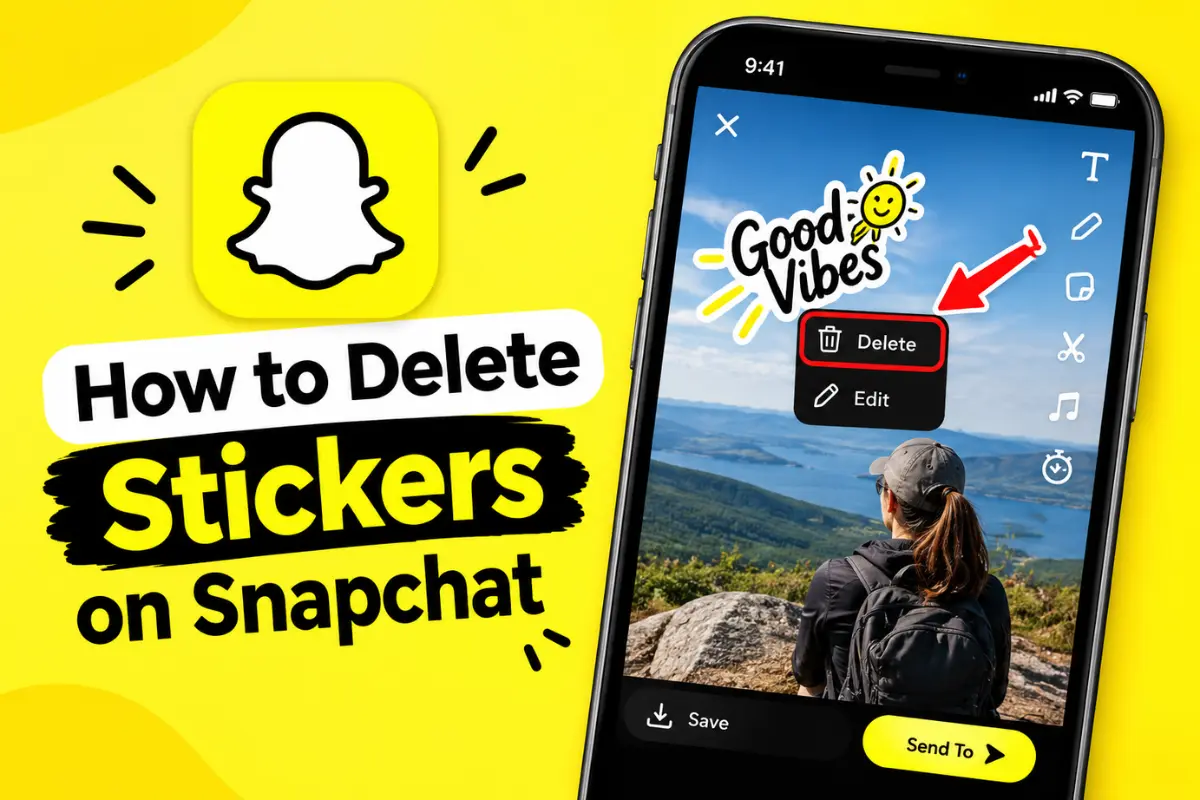
If you accidentally add a sticker to a photo or video, you can remove it before sending your Snap. You do not need to start over or take another picture.
Follow these steps:
- Open Snapchat and take a photo or record a video.
- Tap the sticker icon on the editing screen.
- Add the sticker you want to use.
- Press and hold the sticker you want to remove.
- Drag it toward the trash can icon that appears on the screen.
- Release the sticker over the trash can.
The sticker should disappear from your Snap.
Important: This method removes a sticker from your current Snap. It does not necessarily delete that sticker from your saved sticker collection.
How to Delete Saved Stickers on Snapchat
Snapchat allows you to create custom stickers from objects in your photos. These stickers may appear in your saved sticker collection so you can reuse them in future Snaps and chats.
If you no longer need a custom sticker, you can remove it from the collection.
Step 1: Open Snapchat
Launch Snapchat on your Android or iPhone and sign in to your account.
Step 2: Open a Chat
Open a conversation with a friend. You do not need to send a message to delete a sticker.
Step 3: Open the Sticker Menu
Tap the sticker icon near the chat input field. Depending on your app version, you may see different sticker categories or tabs.
Step 4: Find Your Saved Custom Sticker
Look through the sticker options for the section containing stickers you created yourself. Snapchat’s interface may differ depending on the app version.
Step 5: Press and Hold the Sticker
If the sticker menu provides a delete option for that sticker, press and hold it and select the available removal option.
If no delete option appears, the app may use a different method for that sticker category. Check the custom sticker or scissors section in the Snap editing tools.
Remember that Snapchat’s built-in stickers, Bitmoji stickers, and custom stickers do not always have the same removal controls.
How to Remove Stickers From Snapchat Chat Recents
If you see an unwanted sticker whenever you open the chat sticker menu, it may be stored in your recent stickers list.
You can remove it from your recents without deleting the conversation.
- Open Snapchat and enter a chat.
- Tap the smiley face icon to open the sticker drawer.
- Find the sticker you want to remove.
- Press and hold the sticker.
- Tap Remove from Recents, if the option appears.
Snapchat’s official support confirms that this option removes stickers from the recent list. It does not necessarily delete the original sticker from every sticker category.
What If You Only See the Favorites Option?
Some stickers may offer options such as adding them to Favorites or removing them from Favorites rather than deleting them.
If you previously saved a sticker as a favorite, open the Favorites tab and check its available options. Removing a sticker from Favorites only changes that saved list; it does not delete the sticker itself.
How to Delete a Custom Sticker Made With the Scissors Tool
Snapchat’s Scissors tool lets you cut an object out of a photo and save it as a reusable sticker. These custom stickers are automatically saved in your sticker drawer.
However, deleting a custom sticker permanently from the saved collection can be different from removing it from a Snap or from your recent stickers.
If your version of Snapchat does not show a delete option when you press and hold a custom sticker, there may not be a direct removal control available for that sticker. Avoid assuming that clearing your chat history will delete it.
You can check the sticker menu and Scissors section after updating the app. If the option remains unavailable, contact Snapchat Support for guidance on your specific version.
Can You Delete All Snapchat Stickers at Once?
No. Snapchat’s official guidance states that there is no way to delete all stickers from a Snap at once. You must remove them individually by dragging each sticker to the trash icon.
For example, if you add five stickers to one photo, remove each sticker separately before sending it.
This restriction applies to stickers placed on the current Snap. Managing saved stickers or removing items from Recents follows different steps.
Why Can’t I Delete a Sticker on Snapchat?
Sometimes the removal option does not appear, or a sticker remains in the menu after you try to remove it.
Here are a few things you can check.
1. Make Sure You Are Using the Correct Method
If the sticker is on a photo you are editing, drag it to the trash can. If it appears in a chat’s sticker drawer, press and hold it to check for Remove from Recents.
These actions serve different purposes.
2. Update Snapchat
Open the Google Play Store or Apple App Store and check whether an update is available. Snapchat may change the layout or available sticker controls between versions.
3. Restart the App
Close Snapchat completely and reopen it. Then open the sticker drawer again and check whether the change has taken effect.
4. Clear Snapchat’s Cache
If the app is behaving unexpectedly, clearing its cache may help resolve temporary issues.
Open your Snapchat profile, tap the gear icon, and look for Clear Cache in the settings. The precise location may vary by app version.
Clearing the cache is not the same as deleting saved stickers, and it should not be treated as a guaranteed way to remove them.
Latest Snapchat Sticker Features and Changes
Snapchat’s sticker tools now include more than standard decorative images. According to Snapchat’s current support documentation, users can create custom stickers from photos and, where supported, from Spotlight content.
The app also supports animated stickers created from short videos. Creating animated stickers from video is a Snapchat+ feature, according to Snapchat’s support information.
These options mean your sticker drawer may contain several types of content, including custom cutouts, animated stickers, and standard stickers. As a result, the removal options may not be identical for every item.
If you cannot find a delete button, first identify whether the sticker is on your Snap, in your recent chat stickers, or in your saved custom collection. That will help you choose the right method.
Final Thoughts
Learning how to delete stickers on Snapchat is easy once you understand the difference between removing a sticker from a Snap and removing one from your sticker lists.
Drag unwanted stickers to the trash before sending a Snap. To clean up your chat’s recent stickers, press and hold an item and select Remove from Recents when available.
For saved custom stickers, check the controls available in your version of Snapchat because a permanent delete option may not appear for every sticker. Keeping these differences in mind can help you manage your sticker collection without accidentally removing something you still want to use.