What Does Time Sensitive Mean on Snapchat?
Have you ever received a Snapchat notification with a small Time Sensitive label and wondered what it means? You are not alone. Snapchat uses different notification types to help users stay updated about messages, snaps, stories, and other activities.
A time-sensitive notification is designed to highlight something that may need your attention quickly. It can appear even when your phone is using certain Focus or Do Not Disturb settings, depending on your device and notification preferences.
If you have recently noticed this label on your Snapchat notifications, understanding how it works can help you decide which alerts you want to receive and which ones you would rather silence.
In this guide, we will explain what time sensitive means on Snapchat, why it appears, how it works on iPhone and Android, and how you can manage these notifications.
What Does Time Sensitive Mean on Snapchat?
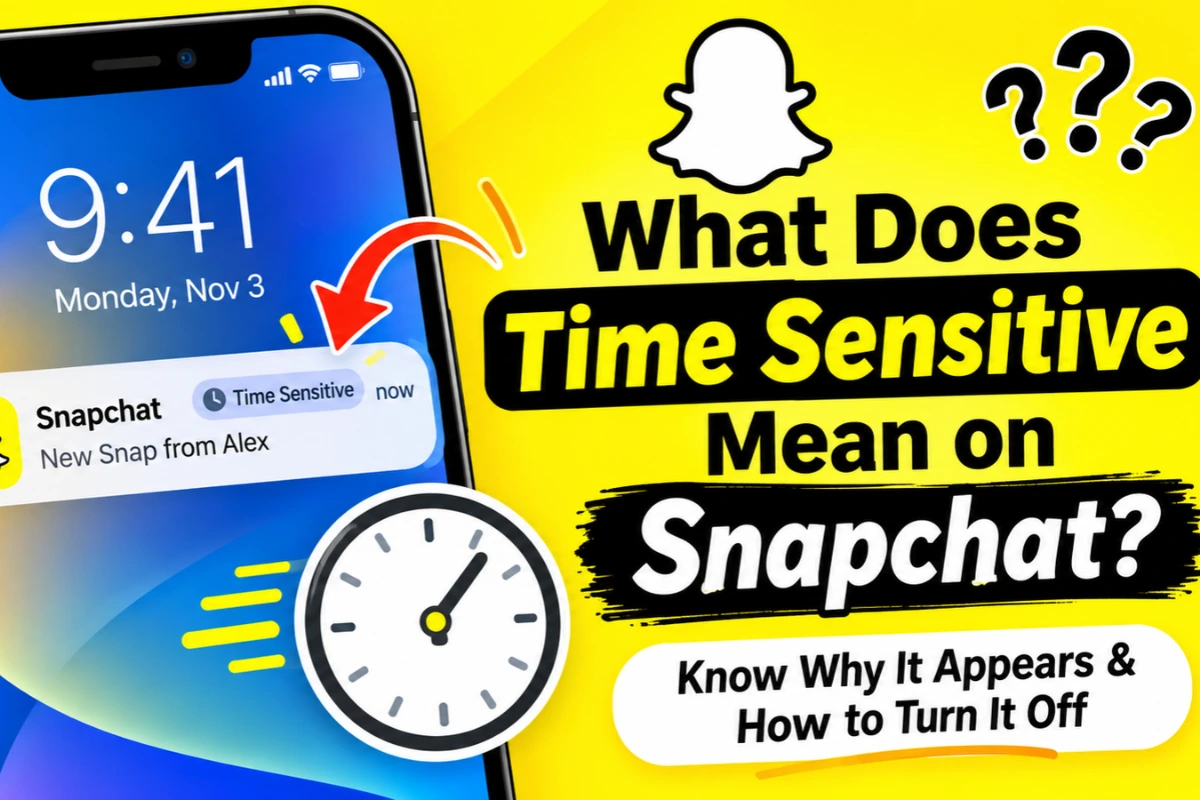
Time Sensitive on Snapchat means a notification has been marked as important enough to deserve your attention sooner rather than later.
The label is connected to your phone’s notification system, particularly Apple’s Time Sensitive Notifications feature on supported iPhones.
For example, you might see a time-sensitive Snapchat notification about a message or another activity. Your iPhone may allow this alert to appear even when a Focus mode is enabled, depending on your settings.
However, it does not mean every Snapchat message is urgent, and it does not mean the sender has marked their message as important.
It is mainly a notification-priority feature that helps certain alerts stand out from regular notifications.
Why Does Snapchat Show Time Sensitive Notifications?
There are several reasons why you might notice the Time Sensitive label on your Snapchat notifications.
1. To Highlight Important Notifications
Snapchat sends different types of alerts throughout the day. Some may be about messages, snaps, friend activity, or other account updates.
Time-sensitive notifications are intended to make selected alerts easier to notice.
2. To Get Your Attention Quickly
If you use an iPhone, time-sensitive alerts can appear on your Lock Screen even when certain Focus settings are active.
This is useful when you do not want to miss selected notifications while limiting other distractions.
3. Your iPhone Allows Priority Notifications
Apple provides developers with a notification category called Time Sensitive. Apps that support this feature can use it to request higher notification priority.
Your iPhone settings determine whether these alerts can break through Focus or other notification restrictions.
Is Time Sensitive the Same as a Normal Snapchat Notification?
No. There is a difference between regular Snapchat notifications and time-sensitive notifications.
A normal notification follows your usual notification settings. If you have enabled Do Not Disturb or a Focus mode, these alerts may remain hidden or appear later.
A time-sensitive notification receives higher priority. On supported Apple devices, it can bypass certain notification restrictions and appear immediately.
Here is a simple comparison:
| Feature | Normal notification | Time Sensitive |
| Notification priority | Regular | Higher |
| Appears during Focus | Usually restricted | Can break through |
| Lock Screen alert | Depends on settings | Can appear immediately |
| User control | Yes | Yes |
Remember, a time-sensitive alert is not necessarily an emergency. It simply receives a different notification priority.
How to Turn Off Time Sensitive Notifications on Snapchat
If you find these notifications distracting, you can turn them off without disabling all Snapchat notifications.
The steps are slightly different depending on your device.
On iPhone
Follow these steps to disable time-sensitive alerts:
- Open the Settings app on your iPhone.
- Scroll down and tap Notifications.
- Find and select Snapchat.
- Look for Time Sensitive Notifications.
- Turn the toggle off.
Once disabled, Snapchat notifications will no longer use this priority setting to bypass your Focus restrictions.
You can still receive regular Snapchat notifications if you keep them enabled.
The exact menu layout may vary slightly depending on your iOS version.
Apple Developer Documentation+1
On Android
Android does not use Apple’s Time Sensitive notification system in the same way.
However, you can manage Snapchat notifications to reduce unwanted alerts.
- Open your phone’s Settings.
- Tap Apps or App Management.
- Find and open Snapchat.
- Select Notifications.
- Turn off the notification categories you do not want to receive.
Depending on your Android phone, you may also have options to silence notifications or change how they appear on your screen.
The available controls can differ between Samsung, Google Pixel, Xiaomi, and other Android devices.
Can You Turn Off All Snapchat Notifications?
Yes. If you do not want Snapchat to send you any notifications, you can disable them completely.
There are two ways to manage them.
Through Snapchat:
- Open Snapchat.
- Tap your profile icon.
- Tap the gear icon to open Settings.
- Select Notifications.
- Turn off the notification types you do not want.
Through your phone settings:
Open your phone’s Settings, find Snapchat under Apps or Notifications, and disable its notifications.
Snapchat also lets you manage individual notification types, including Story notifications. This means you do not necessarily have to turn everything off to reduce distractions.
Does Time Sensitive Mean Someone Is Trying to Contact You Urgently?
Not necessarily.
Seeing the Time Sensitive label does not mean someone has sent you an emergency message or expects an immediate response.
It also does not mean the sender has paid for a special Snapchat feature or manually selected your notification as urgent.
Snapchat uses notification prioritization on supported Apple devices. The exact criteria for deciding which individual alerts receive this label are not fully explained in its public support documentation.
You should not assume that a notification is personally urgent just because it carries this label.
Does Time Sensitive Mean Someone Is Your Best Friend on Snapchat?
No, the Time Sensitive label does not officially mean someone is your Best Friend.
Snapchat has a separate Best Friends feature that identifies people you interact with most frequently through Snaps and Chats.
Some older reports associated time-sensitive notifications with messages from frequently contacted friends. However, the label itself is not a reliable way to identify your Best Friends or determine your friendship ranking.
If you want to understand Snapchat’s friendship rankings, you can also learn about the Snapchat Planets Order, which explains how the Friend Solar System works for Snapchat+ users.
Latest Updates About Time Sensitive Notifications
The Time Sensitive feature is not a brand-new Snapchat update. Snapchat began using Apple’s notification-priority system in 2023, and the feature is still relevant to iPhone users.
Apple introduced this notification system with iOS 15. It allows supported apps to mark selected alerts as time-sensitive so they can receive immediate delivery, including during certain Focus modes.
As of November 2026, Snapchat’s published iOS notification guidance continues to explain how users can control individual notification types through the app. Apple’s system-level settings remain important for managing priority notifications.
There is no confirmed public announcement establishing a completely new meaning for Snapchat’s Time Sensitive label in 2026.
The important thing to understand is that this feature is mainly about notification delivery, not a new messaging feature.
Final Thoughts
So, what does Time Sensitive mean on Snapchat? It means certain notifications receive higher priority so you can notice them without waiting for regular notification delivery.
This feature is particularly useful for people who want to stay updated on Snapchat messages while using Focus mode on their iPhones.
However, if you find these alerts annoying, you can easily disable Time Sensitive Notifications through your iPhone settings. Android users can manage their Snapchat notification categories instead.
You do not need to turn off all Snapchat notifications to control these alerts. Simply adjust your settings according to your preferences.