How to Unfriend Someone on Snapchat (2026 Guide)
Snapchat makes it easy to connect with friends, share Snaps, send messages, and view Stories. However, sometimes you may want to remove someone from your friend list. Maybe you no longer talk to that person, want to manage your privacy, or simply prefer keeping your Snapchat account limited to people you know.
Whatever the reason, you can unfriend someone on Snapchat in just a few steps. You do not need to block the person or delete your Snapchat account.
In this guide, you will learn how to unfriend someone on Snapchat using Android and iPhone, what happens after removing a friend, and how to manage your privacy settings.
What Does Unfriend Mean on Snapchat?
Unfriending someone on Snapchat means removing that person from your friends list. Once you remove them, you are no longer connected as friends on the platform.
This is different from blocking someone. When you unfriend a person, they may still be able to find your profile or contact you depending on your privacy settings.
For example, if your contact settings allow messages from everyone, the person may still be able to send you a message. Removing someone from your friends list does not automatically prevent all future contact.
If you want to stop someone from contacting you completely, blocking may be a better option.
How to Unfriend Someone on Snapchat
You can remove a friend directly from their profile. The process is almost the same on Android and iPhone.
Follow these steps:
Step 1: Open Snapchat
Open the Snapchat app on your phone and log in to your account if you are not already signed in.
You will land on the camera screen.
Step 2: Open Your Friends List
Tap your profile or Bitmoji icon in the top-left corner.
Find the My Friends option and open it to see the people currently added to your Snapchat account.
Step 3: Find the Person You Want to Remove
Scroll through your friends list or use the search option to find the person you want to unfriend.
You can also search for their username if you have difficulty finding them.
Step 4: Open Their Profile
Tap the person’s name or Bitmoji to open their profile.
Check that you have selected the correct account before removing them.
Step 5: Open the Three-Dot Menu
Tap the three-dot menu in the top-right corner of their profile.
A list of options will appear on your screen.
Step 6: Select Manage Friendship
Choose Manage Friendship from the available options.
You should see additional options for managing your connection with that person.
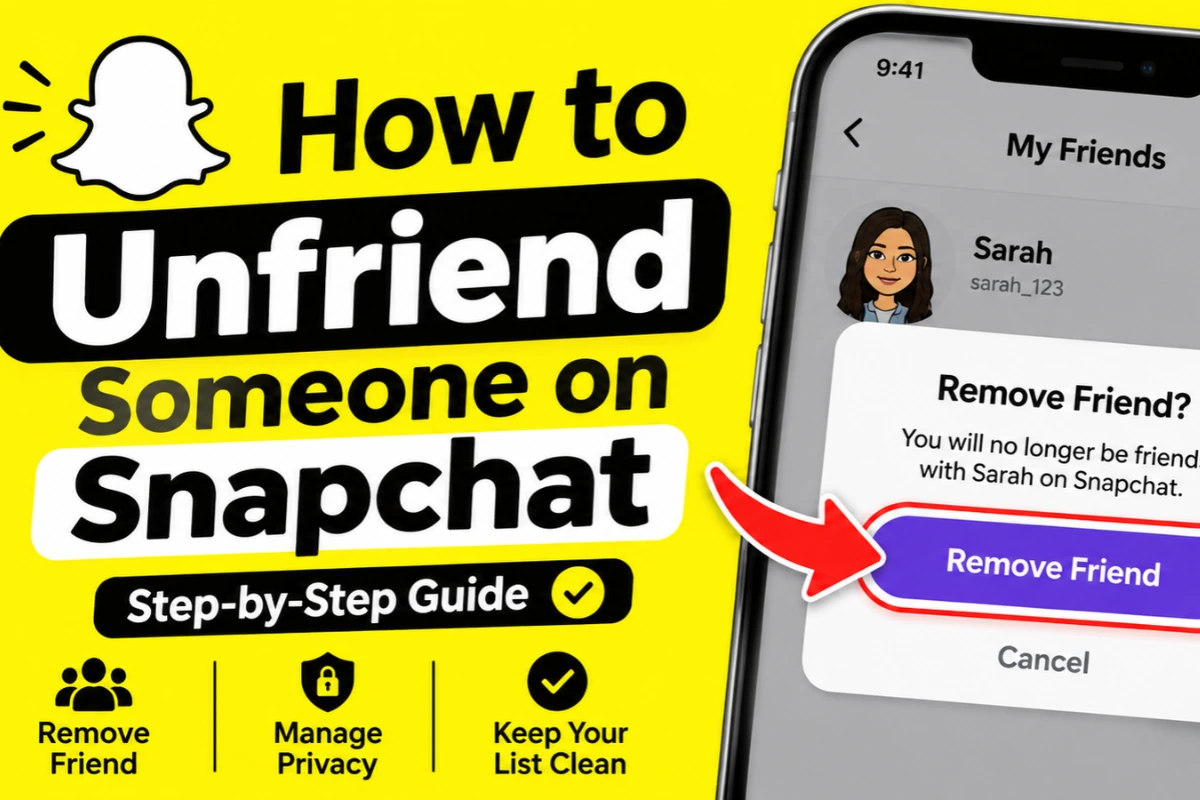
Step 7: Tap Remove Friend
Select Remove Friend and confirm your choice if Snapchat asks you to do so.
Done
The person will be removed from your Snapchat friends list.
Alternative method: You can also remove someone directly from the Chat screen without opening your full friends list:
- Swipe right from the camera screen to open Chat.
- Find the person’s name.
- Tap and hold their name.
- Select Manage Friendship.
- Tap Remove Friend.
This is the direct removal method documented by Snapchat Support.
Snapchat Support
What Happens When You Unfriend Someone on Snapchat?
Before removing someone, it is helpful to understand what changes after unfriending them.
Here are the main things to know.
1. They Are Removed From Your Friends List
After removing someone, their name will no longer appear in your friends list. If you want to connect with them again, you will need to search for their username and add them.
2. They Cannot See Your Private Stories
When you remove someone, they lose access to your private Stories and Charms.
However, they may still see content you have shared publicly, depending on your account settings.
Snapchat Support
3. They May Still Send You Messages
Unfriending someone does not always stop them from sending you messages or Snaps.
This depends on your contact and privacy settings. If you allow messages from people who are not your friends, they may still be able to contact you.
4. Your Saved Chats May Remain
Removing someone does not automatically delete your saved conversations.
Messages and Snaps saved in your Chat may remain visible according to Snapchat’s chat and saving rules. You may need to clear the conversation separately if you want to remove it from your Chat feed.
5. Your Snap Map Location Sharing May Change
Snapchat’s location-sharing feature is connected to your friend relationships.
If you remove someone, they are no longer included in your friends-only location-sharing audience. However, review your Snap Map settings to make sure your location is not visible through another sharing option.
Snapchat Support+1
Does Snapchat Notify Someone When You Unfriend Them?
No, Snapchat does not send a direct notification when you remove someone from your friends list.
They will not receive a message saying that you have unfriended them.
However, they might notice the change themselves. For example, they may no longer see your private Stories or certain friendship-related information.
They might also notice that your profile shows an Add option instead of the usual friendship-related options.
So, unfriending is generally a quiet action, but it does not guarantee that the other person will never find out.
How to Unfriend Someone on Snapchat Without Blocking Them
If you simply want to remove someone from your friends list without completely cutting off contact, you do not need to block them.
Follow these steps:
- Open Snapchat and go to the Chat screen.
- Find the person you want to remove.
- Press and hold their name.
- Tap Manage Friendship.
- Select Remove Friend.
That’s it. The person will be removed from your friends list, but their account will not be blocked.
This option is useful when you want to clean up your friend list without making the person completely unable to find or contact you.
How to Unfriend Someone on Snapchat Without Them Knowing
There is no special setting that guarantees someone will never notice you have removed them. However, Snapchat does not send an automatic unfriending notification.
If you want to manage your account more privately, consider these steps:
- Remove the person from your friends list.
- Review your Story privacy settings.
- Check who can contact you.
- Review your Snap Map sharing settings.
- Avoid sharing personal content publicly if you want to limit visibility.
These settings help you control what other people can see without needing to block everyone.
Difference Between Unfriend, Block, and Mute on Snapchat
Snapchat offers different ways to manage unwanted interactions. Choosing the right option depends on what you want to achieve.
| Feature | What It Does |
| Remove Friend | Removes someone from your friends list. |
| Block | Prevents someone from contacting you or finding your account through Snapchat. |
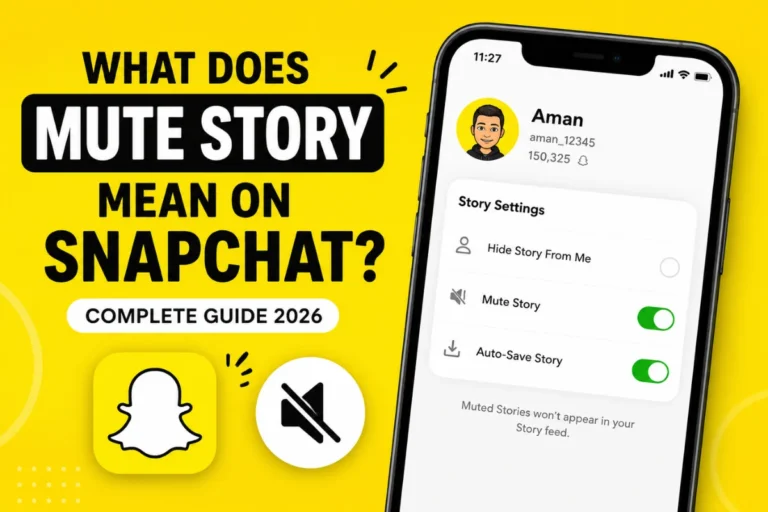
| Mute | Stops seeing selected Story or notification updates without removing the person. |
Remove Friend: Choose this if you no longer want someone on your friends list.
Block: Choose this if someone is bothering you or you do not want them to contact you.
Mute: Choose this if you want a break from someone’s Stories or notifications but still want to remain friends.
Snapchat also provides reporting tools if someone is sending harmful messages, spam, or violating its Community Guidelines.
Snapchat Support+1
How to Block Someone Instead of Unfriending Them
If removing someone is not enough, you can block them.
Here is how:
- Open Snapchat and go to the Chat screen.
- Find the person you want to block.
- Tap and hold their name.
- Select Manage Friendship.
- Tap Block.
- Confirm your decision if prompted.
Once blocked, the person will no longer be able to contact you through Snapchat in the usual way.
Blocking is a better choice if you want stronger privacy and protection.
Latest Snapchat Friendship Updates in 2026
Snapchat continues to improve its friendship and privacy tools. The current support documentation highlights several ways to manage connections without deleting your account.
Here are a few important things to understand:
Friendship Profiles Have More Management Options
Snapchat’s Friendship Profiles bring your saved Snaps, Chats, and Charms together in one place.
You can open a friend’s profile, tap the three-dot menu, and access options to remove, block, or report that person. You can also manage notifications from the same area.
Snapchat Support+1
Public Profiles Are Different From Friendships
Snapchat also supports Public Profiles, which allow eligible users to share content with a wider audience.
Removing someone as a friend does not necessarily prevent them from viewing content you have made public. This is why reviewing your Public Profile and Story settings is important.
You Cannot Remove Multiple Friends at Once
If you want to clean up your entire friends list, Snapchat currently does not offer a built-in option to remove multiple friends simultaneously.
You must remove each person individually using the Manage Friendship option.
Snapchat Support
Frequently Asked Questions
Can I Add Someone Again After Unfriending Them?
Yes. Search for their Snapchat username and tap Add to send them a new friend request.
They may need to accept your request before you become friends again.
Does Unfriending Someone Delete Our Conversation?
No. Removing a friend does not automatically delete saved messages or your entire conversation history.
You can manage or clear the conversation separately.
Can Someone See My Stories After I Remove Them?
They cannot see your private Stories as a removed friend. However, they may still view public content depending on your privacy settings.
Is Unfriending the Same as Blocking?
No. Unfriending removes someone from your friends list, while blocking restricts their ability to contact or find you on Snapchat.
Can I Unfriend Someone Who Has Not Added Me Back?
If someone is not your friend, you may not need to remove them from your friends list. You can manage their chat, clear the conversation, or block them if necessary.
Final Thoughts
Unfriending someone on Snapchat is a simple way to manage your connections and keep your friends list organized. You can remove someone through their profile or directly from the Chat screen using the Manage Friendship option.
Remember that removing someone does not automatically block them or hide all your public content. If you want more privacy, review your Story, contact, and location settings after removing them.
Choose the option that best fits your situation, whether it is removing a friend, muting their updates, or blocking them completely.