
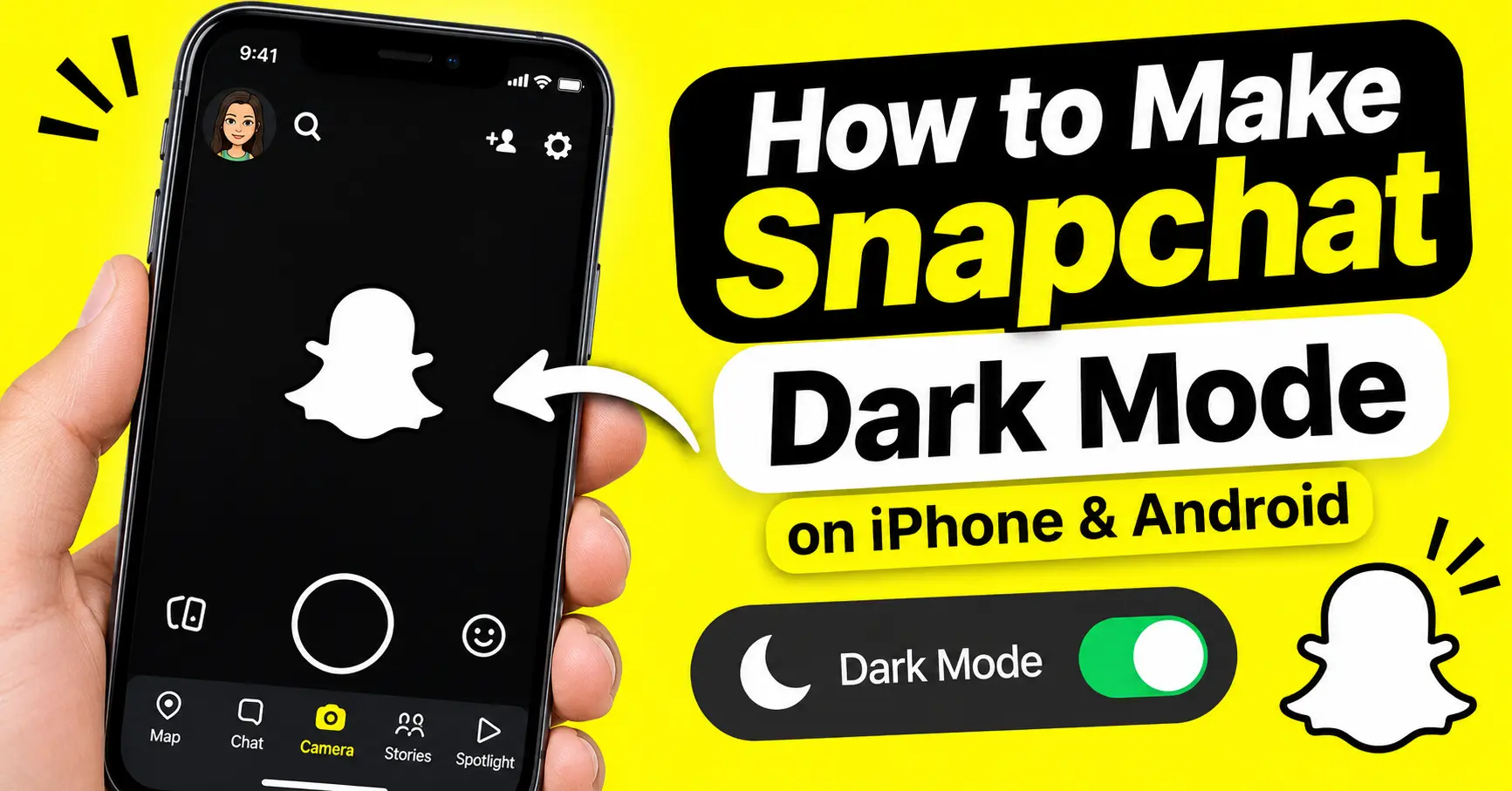
How to Make Snapchat Dark Mode in 2026 (iPhone & Android)
Snapchat is one of the most popular social media apps, but its bright yellow and white interface can sometimes feel uncomfortable, especially when using it at night. Dark Mode changes the app’s appearance to a darker color scheme, making the screen easier on the eyes in low-light environments.
If you’re wondering how to make Snapchat Dark Mode on your iPhone or Android device, the process depends on your phone and the Snapchat version you’re using.
Snapchat offers an in-app appearance setting on supported devices. However, the available options can vary depending on your operating system, app version, and account. You can also use a Snapchat Viewer to explore publicly available Snapchat Stories anonymously.
What Is Snapchat Dark Mode?
Snapchat Dark Mode is an appearance setting that changes the app’s bright interface into a darker theme. Instead of using a mostly white background, supported versions display darker backgrounds throughout parts of the app.
This feature is useful for people who frequently use Snapchat at night or prefer dark themes across their mobile apps.
Some benefits of Snapchat Dark Mode include:
- A more comfortable viewing experience in low-light environments.
- A darker interface that matches your phone’s appearance.
- Less visual brightness when browsing chats and settings.
- A consistent look if you use Dark Mode in other apps.
Dark Mode does not change how Snapchat works. You can still send Snaps, view Stories, chat with friends, and use other features normally.
How to Make Snapchat Dark Mode on iPhone
Enabling Dark Mode on an iPhone is usually straightforward because Snapchat provides an appearance option in its settings on supported versions.
Follow these steps:
Step 1: Open Snapchat
Open the Snapchat app on your iPhone and sign in to your account if you haven’t already.
Step 2: Tap Your Profile Icon
Tap your Bitmoji or profile icon in the top-left corner of the camera screen.
This will open your Snapchat profile, where you can access account settings and other options.
Step 3: Open Settings
Tap the gear icon in the top-right corner to open the Settings menu.
Step 4: Find App Appearance
Scroll through the settings until you find the App Appearance option.
Tap it to see the available appearance settings.
Step 5: Select Always Dark
If the option is available, select Always Dark to enable Snapchat’s dark theme.
You may also see options such as:
- Match System: Snapchat follows your iPhone’s display appearance.
- Always Light: Snapchat keeps its light appearance.
- Always Dark: Snapchat uses its dark appearance.
Note: Menu names and available options may vary depending on your Snapchat version and device.
How to Make Snapchat Dark Mode on Android
Android users can also enable Snapchat Dark Mode directly through the app. You do not need to root your phone or install third-party applications.
Follow these steps:
Step 1: Launch Snapchat
Open Snapchat on your Android phone and go to the camera screen.
Step 2: Open Your Profile
Tap your Bitmoji or profile picture in the upper-left corner.
Step 3: Go to Settings
Tap the gear icon in the upper-right corner to access Snapchat settings.
Step 4: Select App Appearance
Scroll down to the Shortcuts section and look for App Appearance.
Tap this option to open the theme settings.
Step 5: Choose System Dark
Select System Dark from the available options and tap Apply Theme.
Snapchat should now switch to its dark appearance.
Snapchat’s current support instructions use the System Dark and System Light labels. Older app versions or different interfaces may display slightly different wording. Snapchat Support+1
How to Enable Snapchat Dark Mode Using System Settings
If you prefer using Dark Mode across your entire phone, you can also change your device’s display settings.
This method is useful when you want supported applications to follow your phone’s appearance automatically.
On iPhone
- Open your iPhone Settings.
- Tap Display & Brightness.
- Under Appearance, select Dark.
- Open Snapchat.
- Go to Settings and find App Appearance.
- Select the system-matching option if available.
On Android
- Open your Android phone’s Settings.
- Go to Display.
- Find the Dark Theme or Dark Mode option.
- Turn it on.
- Open Snapchat and check its App Appearance settings.
- Select the system-matching option if available.
Important: Changing your phone’s theme does not guarantee that every app will automatically become dark. Snapchat’s own appearance setting controls its in-app theme.
How to Turn Off Dark Mode on Snapchat
If you no longer like the dark interface, you can easily return to the original light appearance.
Follow these steps:
- Open Snapchat.
- Tap your profile icon.
- Open Settings using the gear icon.
- Find App Appearance under Shortcuts.
- Select System Light.
- Tap Apply Theme.
Your Snapchat interface should return to its light appearance.
You can switch between dark and light themes whenever you want.
Why Is Snapchat Dark Mode Not Showing?
Sometimes, users cannot find the App Appearance option in their Snapchat settings. This can happen because of an outdated app, a temporary issue, or differences in the available interface.
Here are some ways to troubleshoot the problem.
1. Update Snapchat
Open the Google Play Store or Apple App Store and search for Snapchat.
If an update is available, install it and reopen the application. An updated version may include the latest appearance settings.
2. Restart the Snapchat App
Close Snapchat completely and open it again.
Temporary app issues can sometimes prevent settings from appearing or applying correctly.
3. Restart Your Phone
Restarting your device can help resolve minor software problems.
After restarting, open Snapchat and check the App Appearance section again.
4. Clear Snapchat Cache
If Snapchat is still not working properly, try clearing its cache.
Open Snapchat Settings, find Clear Cache, and follow the instructions.
Clearing the cache removes temporary files and does not normally delete your saved Memories or conversations.
5. Contact Snapchat Support
If none of these methods work, visit the official Snapchat Dark Mode support guide for the latest instructions.
You can also report the problem through Snapchat’s support options.
Does Snapchat Dark Mode Require Snapchat+?
No. Snapchat’s standard Dark Mode does not require a Snapchat+ subscription.
Both free and paid users can access the standard appearance setting where it is available.
However, Snapchat+ offers additional customization options, including custom app themes. These are separate from the standard Dark Mode feature, and Snapchat says custom themes are being rolled out gradually to subscribers. Snapchat Support+1
Does Snapchat Dark Mode Save Battery?
Dark Mode may help reduce battery consumption on smartphones with OLED or AMOLED displays.
These screens can turn off individual pixels when displaying black, which may use less power than displaying bright colors.
However, the actual battery savings depend on your phone, screen brightness, display technology, and how you use Snapchat.
Dark Mode should not be considered a guaranteed way to extend battery life.
Frequently Asked Questions
Is Snapchat Dark Mode available on Android?
Yes. Snapchat supports a built-in Dark Mode option on Android. Open Settings, find App Appearance, select System Dark, and tap Apply Theme.
Can I make Snapchat permanently dark?
Yes. Select System Dark in the App Appearance settings and apply the theme. This keeps Snapchat in its dark appearance rather than relying on your phone’s light theme.
Why does Snapchat keep switching back to light mode?
Check whether you selected a system-dependent appearance option. Your phone’s display settings may be changing automatically. Select System Dark directly if you want Snapchat to remain dark.
Does Dark Mode change Snapchat Stories?
Dark Mode changes the app’s interface, not the original colors of photos and videos uploaded by other users. Stories and Snaps continue to appear in their original format.
Can I use Snapchat Dark Mode without Snapchat+?
Yes. The standard Dark Mode setting is available without purchasing Snapchat+.
Final Thoughts
Making Snapchat Dark Mode is simple on both iPhone and Android. You just need to open your profile, visit Settings, find App Appearance, and select System Dark.
The feature provides a darker interface that many people prefer when using Snapchat at night. You can also switch back to System Light whenever you want.
If the option is missing, update your Snapchat app and check the settings again. Using the official appearance option is the easiest way to enjoy Snapchat Dark Mode in 2026.