How to Delete Snapchat Messages: A Complete Guide (2026)
Snapchat is designed for quick conversations, but sometimes you may send a message by mistake or want to remove an old conversation. Whether you sent the wrong text, shared something accidentally, or simply want to keep your chats organized, knowing how to delete Snapchat messages can be helpful.
Snapchat allows users to delete individual messages from conversations. You can also clear conversations from your chat feed, delete saved messages in certain situations, and manage disappearing chats.
However, deleting a message is not the same as deleting an entire conversation. It is also important to understand that the other person may already have seen or saved your message. If you want to explore more Snapchat features, you can also learn about using a Snapchat anonymous viewer.
How to Delete a Chat on Snapchat
Want to delete a Snapchat chat or remove a conversation? Watch this video to learn how to delete Snapchat messages and clear conversations in a few simple steps.
Can You Delete Messages on Snapchat?
Yes. Snapchat allows you to delete individual messages that you have sent in a chat. You can remove text messages, certain shared content, and other eligible messages by using the delete option.
However, there are a few things to remember:
- You can delete messages you have sent.
- You generally cannot delete messages sent by another person.
- The other person may see a notification that a message was deleted.
- A recipient may have already read, screenshotted, or otherwise saved the content.
- Deleting a message does not guarantee that every copy disappears from every device.
Snapchat’s message deletion feature is useful when you want to correct a mistake or remove something you no longer want in a conversation.
How to Delete a Snapchat Message You Sent
If you accidentally send a message to the wrong person, you can remove it directly from the conversation. You do not need to clear the entire chat.
Follow these steps:
- Open the Snapchat app on your phone.
- Swipe right from the Camera screen to open your Chat screen.
- Open the conversation where you sent the message.
- Find the message you want to remove.
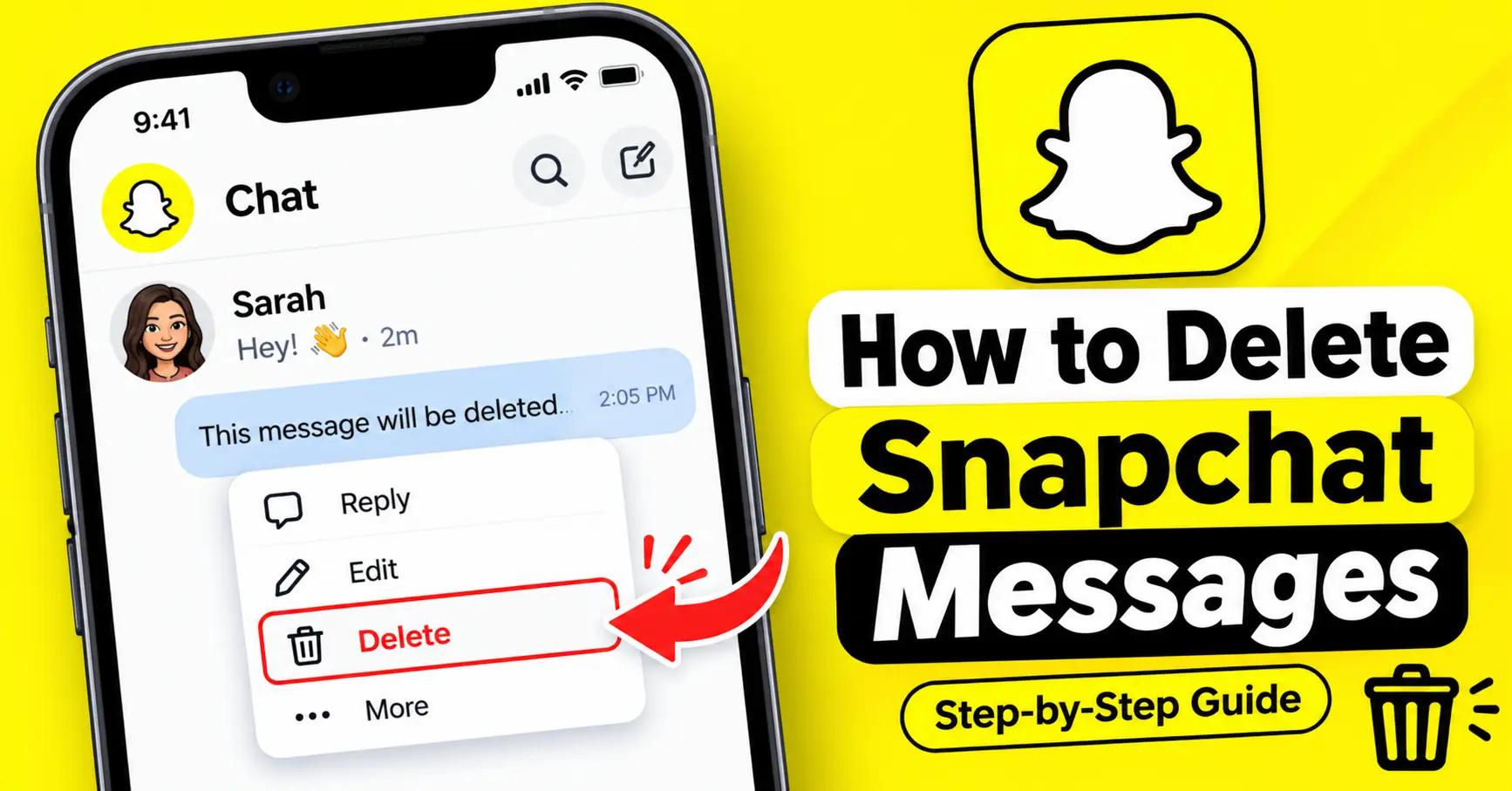
- Press and hold the message.
- Tap Delete from the pop up menu.
- Confirm the action if Snapchat asks you to do so.
Snapchat will attempt to remove the selected message from the conversation and your friend’s device.
However, your friend will see a notice that a message was deleted. They may also have read or captured the message before you removed it.
How to Delete Saved Messages on Snapchat
Snapchat users can save important messages in conversations so they remain available after the usual disappearing-message period.
Saved messages have a grey background, making them easy to identify.
If you want to remove a saved message, follow these steps:
- Open Snapchat and go to the Chat screen.
- Select the conversation containing the saved message.
- Find the message with the grey background.
- Tap the saved message to unsave it.
- If you want to remove a message you sent, press and hold it.
- Select Delete if the option is available.
Once a message is unsaved, it can follow the conversation’s automatic deletion settings.
Remember that unsaving and deleting are different actions. Unsaving removes the saved status, while deleting removes an eligible message from the conversation. Snapchat Support+1
How to Clear a Conversation From Your Snapchat Chat Feed
Sometimes you may not want to delete individual messages. Instead, you might simply want to remove an old conversation from your Chat feed.
Snapchat provides a Clear Conversations option for this purpose.
Here’s how to use it:
- Open Snapchat and tap your Profile icon.
- Tap the Settings gear icon.
- Scroll down to App & Privacy.
- Open My Privacy & Data.
- Under Manage My Data, select Clear Data.
- Find Clear Conversations.
- Tap the X next to the conversation you want to remove.
The conversation will disappear from your Chat feed.
However, this action does not delete messages or saved content from the conversation. If you open a new conversation with that person, the chat may appear in your feed again.
How to Delete Snapchat Messages Automatically
If you prefer not to keep old conversations, you can change Snapchat’s chat deletion settings.
Snapchat offers different options for automatically deleting messages after a certain period.
Follow these steps:
- Open Snapchat and visit the Chat screen.
- Press and hold the friend’s name or group conversation.
- Tap Chat and Notification Settings.
- Select Delete Chats.
- Choose your preferred option.
You can generally choose between these settings:
- After Viewing: Messages are set to delete after everyone has viewed them.
- 24 Hours After Viewing: Messages remain for 24 hours after everyone views them.
- 7 Days After Viewing: Messages remain for seven days after everyone views them.
- Never: Messages stay in the conversation until manually removed or otherwise deleted.
Keep in mind that anyone in the conversation can change this setting. Snapchat also displays a notification in the chat when someone changes it.
These settings generally apply to new messages. Older messages keep the deletion settings that applied when they were sent. Saved, replied-to, or reacted-to messages may also remain longer.
Can You Delete Snapchat Messages From Both Sides?
Yes, you can delete messages you sent, and Snapchat attempts to remove them from both your conversation and your friend’s device.
However, there are some limitations.
You cannot delete messages sent by another Snapchat user. You can only remove eligible content that you sent yourself.
Also, deleting a message does not guarantee that the recipient never saw it. They may have already opened it, taken a screenshot, or captured it using another device.
Snapchat also explains that deletion may not happen immediately if the recipient has a poor internet connection or is using an outdated version of the app. Snapchat Support+1
What Happens When You Delete a Message on Snapchat?
Before deleting a message, it helps to understand what happens afterward.
Here are some important things to know:
- Deletion notification: Your friend can see that you deleted a message.
- Screenshots: Previously captured screenshots cannot be removed through Snapchat.
- Saved content: Saved messages may need to be unsaved before they disappear normally.
- Sent messages: Snapchat attempts to remove deleted messages from its servers and recipients’ devices.
- Chat history: Deleting one message does not automatically remove the entire conversation.
- Other people’s messages: You cannot delete messages sent by someone else.
In short, deleting a message helps remove content from the conversation, but it does not guarantee complete removal of every copy.
Why Can’t I Delete Messages on Snapchat?
Sometimes the Delete option may not work as expected. This can happen because of an outdated app, an internet connection problem, or a conversation you can no longer access.
Here are a few things you can try.
1. Update Snapchat
Open the Google Play Store or Apple App Store and check whether a new Snapchat update is available.
An outdated version may cause problems with chat features.
2. Check Your Internet Connection
Make sure your phone has a stable internet connection. Switch between Wi-Fi and mobile data if messages are not deleting properly.
3. Restart the App
Close Snapchat completely and reopen it. Then return to the conversation and try deleting the message again.
4. Clear Snapchat Cache
If the app continues experiencing problems, clearing its cache may help.
Open Snapchat Settings, find the Clear Cache option, and follow the instructions.
Clearing the cache does not delete your saved Memories, Snaps, or Chats.
How Long Do Snapchat Messages Stay Before Deleting?
Snapchat automatically deletes many conversations according to its chat retention settings.
For regular one to one and Group Chats, the default setting generally deletes messages 24 hours after everyone has viewed them or 31 days after they were sent, whichever happens first.
However, messages may remain longer if someone saves, replies to, or reacts to them.
There are also some exceptions:
- My AI conversations are stored until you delete them.
- Community Group Chats have different deletion rules.
- Topic Chat messages are public and have separate retention rules.
You can adjust the deletion settings for supported conversations to control how long new messages remain visible. Snapchat Support+1
Frequently Asked Questions
Can I delete an entire Snapchat conversation?
You can clear a conversation from your Chat feed through Snapchat Settings. However, clearing a conversation does not delete its sent or saved messages.
Does Snapchat notify someone when you delete a message?
Yes. Snapchat displays a notice in the conversation indicating that you deleted a message. The notification does not normally show the original message.
Can I delete messages after someone reads them?
Yes. You can attempt to delete your sent messages even after someone has viewed them. However, they may have already taken a screenshot or saved the content.
Can I delete messages someone else sent?
No. Snapchat does not allow you to delete another person’s messages from the conversation.
Does clearing Snapchat conversations delete saved messages?
No. Clearing a conversation only removes it from your Chat feed. Saved messages and sent content remain unaffected.
Final Thoughts
Deleting Snapchat messages is simple once you understand the difference between deleting individual messages and clearing entire conversations.
If you accidentally send something, press and hold the message and select Delete. If you only want to organize your Chat feed, use the Clear Conversations option in Settings.
You can also change automatic chat deletion settings to manage how long future messages stay in your conversations.
Remember that Snapchat informs other participants when you delete a message, and deletion cannot undo screenshots or copies someone has already made.